# The Complete Guide to Adding and Editing Lottie Animations in WordPress
*By LottieFiles · May 24, 2022*
Add motion to your WordPress site for free – even if you can’t design or code.
---
Motion is a web design superpower. Seriously – [motion helps you](https://lottiefiles.com/blog/inspiration/why-add-animation-in-wordpress) stand out from the competition, tell your brand story, craft effective user interfaces (UIs) and make a site interactive or feel more responsive.
But how do you add motion to WordPress without hiring a whole team of designers and developers? It’s easy with LottieFiles. In this article, we’ll show you a few different ways to add and customize free Lottie animations in WordPress.
First, you’ll learn how to embed Lottie animations with oEmbed or the HTML and Javascript (JS). Then, you’ll learn how to add Lottie animations with the new LottieFiles for WordPress plugin, and how to use it to set up advanced customizations.
### **Table of contents**
- [How to embed Lottie animations with oEmbed](#how-to-embed-lottie-animations-with-oembed)
- [How to embed Lottie animations with HTML and JS](#how-to-embed-lottie-animations-in-wordpress-with-html-and-js)
- [How to add Lottie animations with the LottieFiles for WordPress plugin](#how-to-add-lottie-animations-with-the-lottiefiles-for-wordpress-plugin)
- [How to use a Lottie animation as a background](#how-to-use-a-lottie-animation-as-a-background-in-wordpress)
- [How to create a scroll-based Lottie animation](#how-to-create-a-scroll-based-lottie-animation-in-wordpress)
- [How to play a Lottie animation on hover or click](#how-to-play-a-lottie-animation-on-hover-or-click-in-wordpress)
## **What do you need to add Lottie animations to WordPress?**
Depending on which method you use to add Lottie animations, you may need one or some of the following:
- **The LottieFiles for WordPress plugin** \- This plugin helps you search, add and customize Lottie animations in WordPress. And it’s completely free! [Get LottieFiles for WordPress](https://lottiefiles.com/plugins/wordpress) here.
- **Gutenberg Editor** - The LottieFiles for WordPress plugin needs the Gutenberg Editor (also known as the WordPress block editor) to function. This is the default editor that has been included in WordPress since December 2018.
- **A plugin to insert custom code** - Some of the methods below may need custom HTML, JS or CSS. To add custom code to your entire WordPress site, you could directly edit your template files, but that’s not recommended – you could accidentally create conflicts with your WordPress theme or other plugins, or lose your custom code when you update your template. Instead, we’ll go with the simpler (and safer) method of adding custom code with a plugin. You can use any plugin, but we’ll use [Simple Custom CSS and JS](https://wordpress.org/plugins/custom-css-js/) in this tutorial.
## **How to embed Lottie animations with oEmbed**
Here’s how to add a [Lottie animation to WordPress](https://lottiefiles.com/wordpresscom) through oEmbed.
- Browse [thousands of free animations](https://lottiefiles.com/featured) on LottieFiles.
- Click on any animation and copy the oEmbed URL.
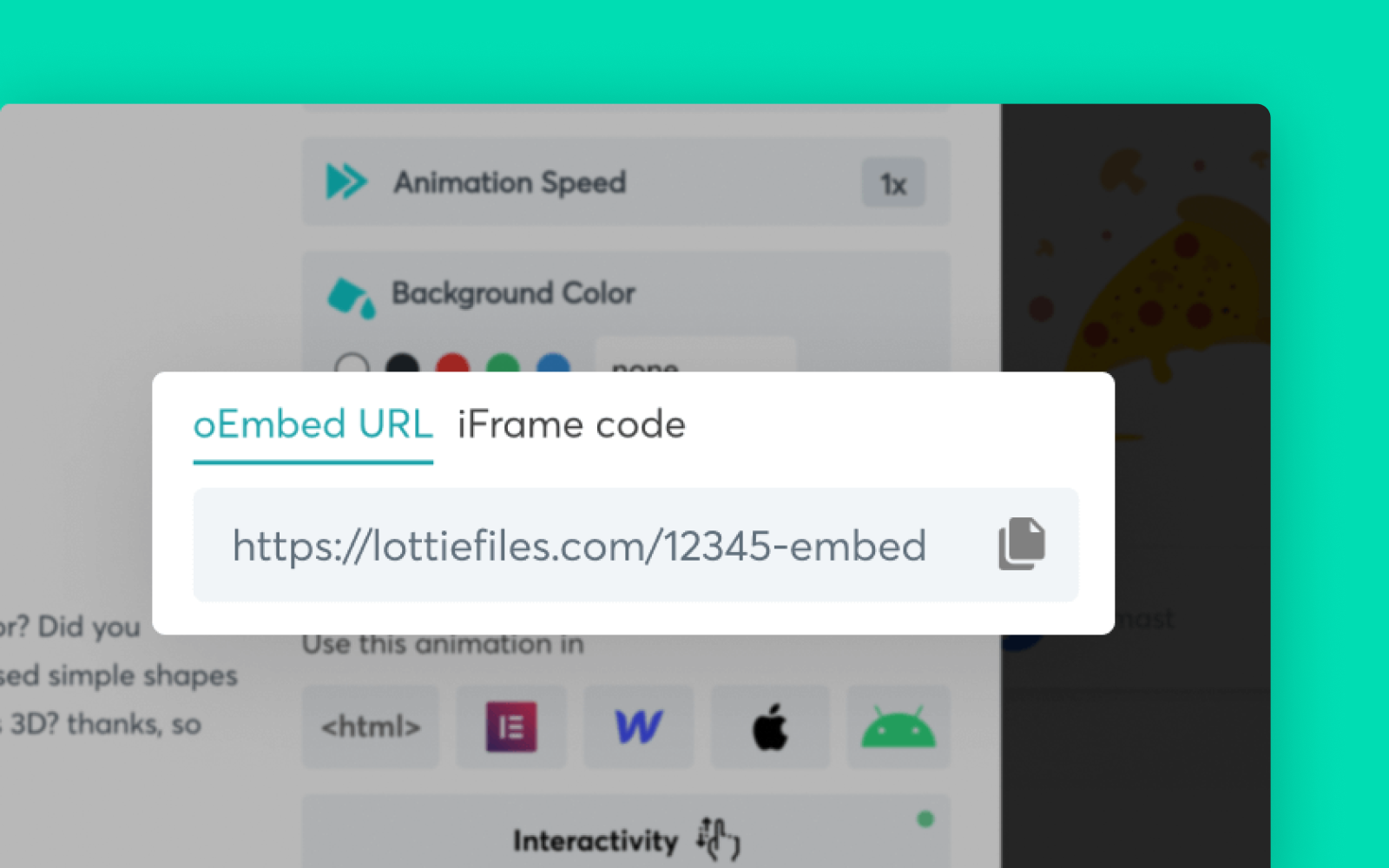
- In the WordPress Gutenberg editor, add a new block.
- Click **Embed**.
- Paste the oEmbed URL into this field and click **Embed**.
While this is the simplest way to add a Lottie animation to WordPress, you can’t edit the animation settings or set it up to react to user interaction.
## **How to embed Lottie animations in WordPress with HTML and JS**
[Embedded content](https://www.youtube.com/embed/_oKeoxGPzBw?feature=oembed)
- Head to the [LottieFiles Web Player](https://lottiefiles.com/web-player).
- Under **YOUR LOTTIE JSON URL**, paste the link to your Lottie JSON file. You can get this link by clicking on any animation on LottieFiles.
- Untick **Controls**.
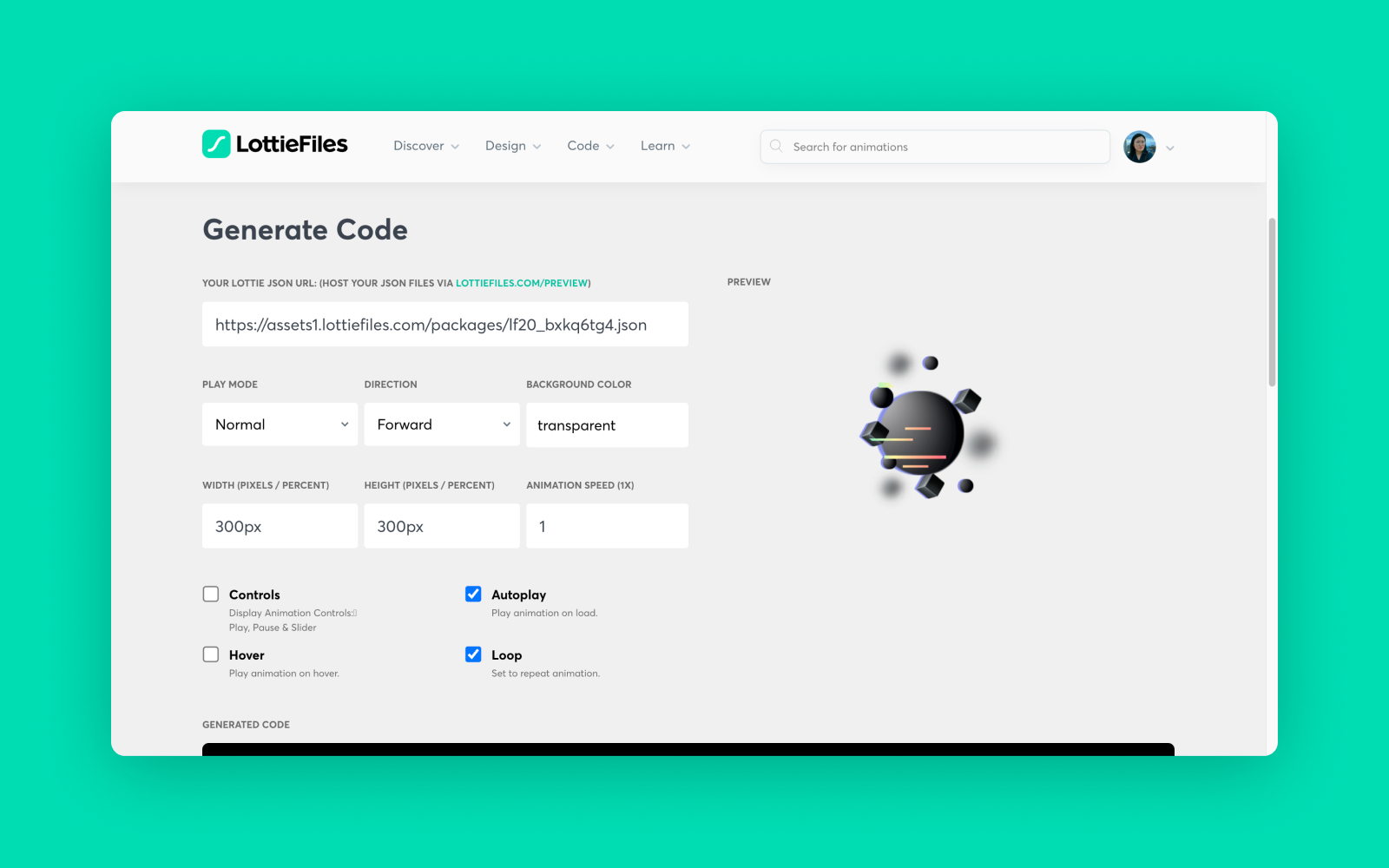
- Copy the **lottie-player** html code. For example, we’ll copy
```HTML
```
- In the WordPress Gutenberg editor, add a new block.
- Choose **Custom HTML**.
- Paste the HTML code you copied above.
If you save and refresh the page, nothing will appear. That’s because we’ll need to load the Lottie Player JavaScript file in WordPress as well.
- Go back to the LottieFiles Web Player page and copy the **script** tag.
```HTML
```
- Go to the WP admin.
- Go to the Simple Custom CSS and JS plugin.
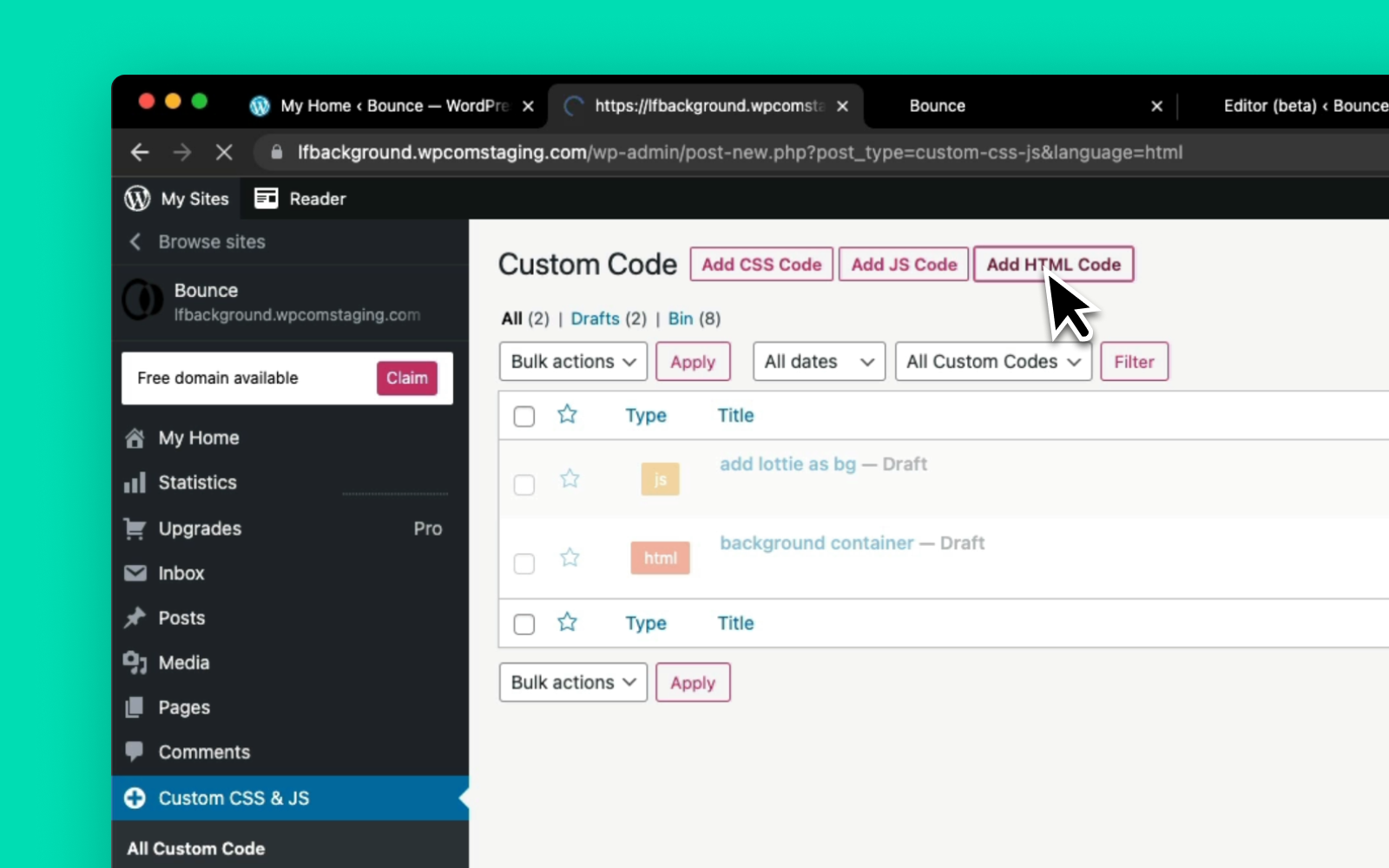
- Choose **Add HTML Code**.
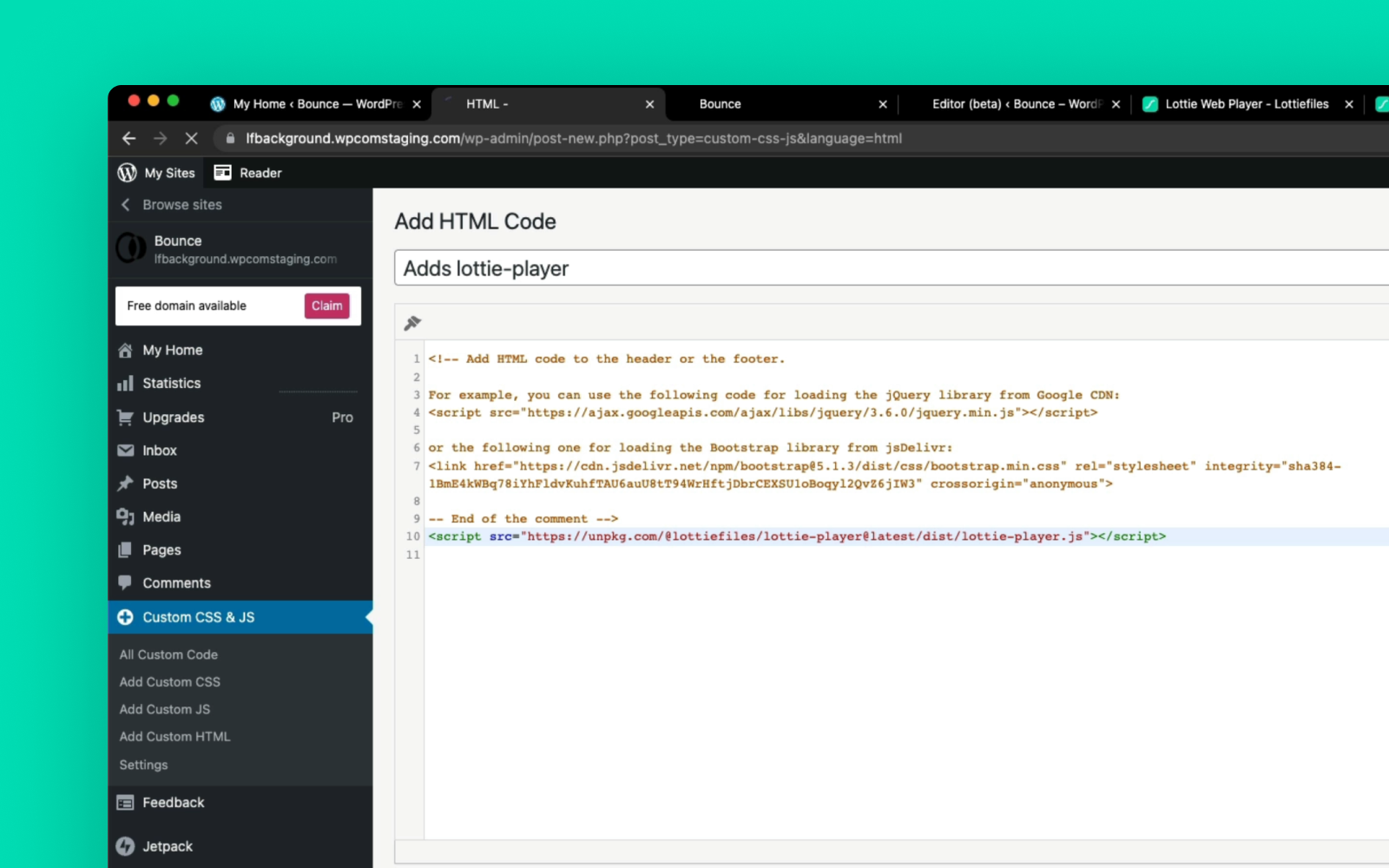
- Give it the title **Adds lottie-player**.
- Paste the script tag in the editor.
- Click **Publish**.
If you refresh the page, you should see the Lottie animation appear. If the size appears too small or too big, you can change the default parameters of **style="width: 300px; height: 300px;"** in the **lottie-player** html tag.
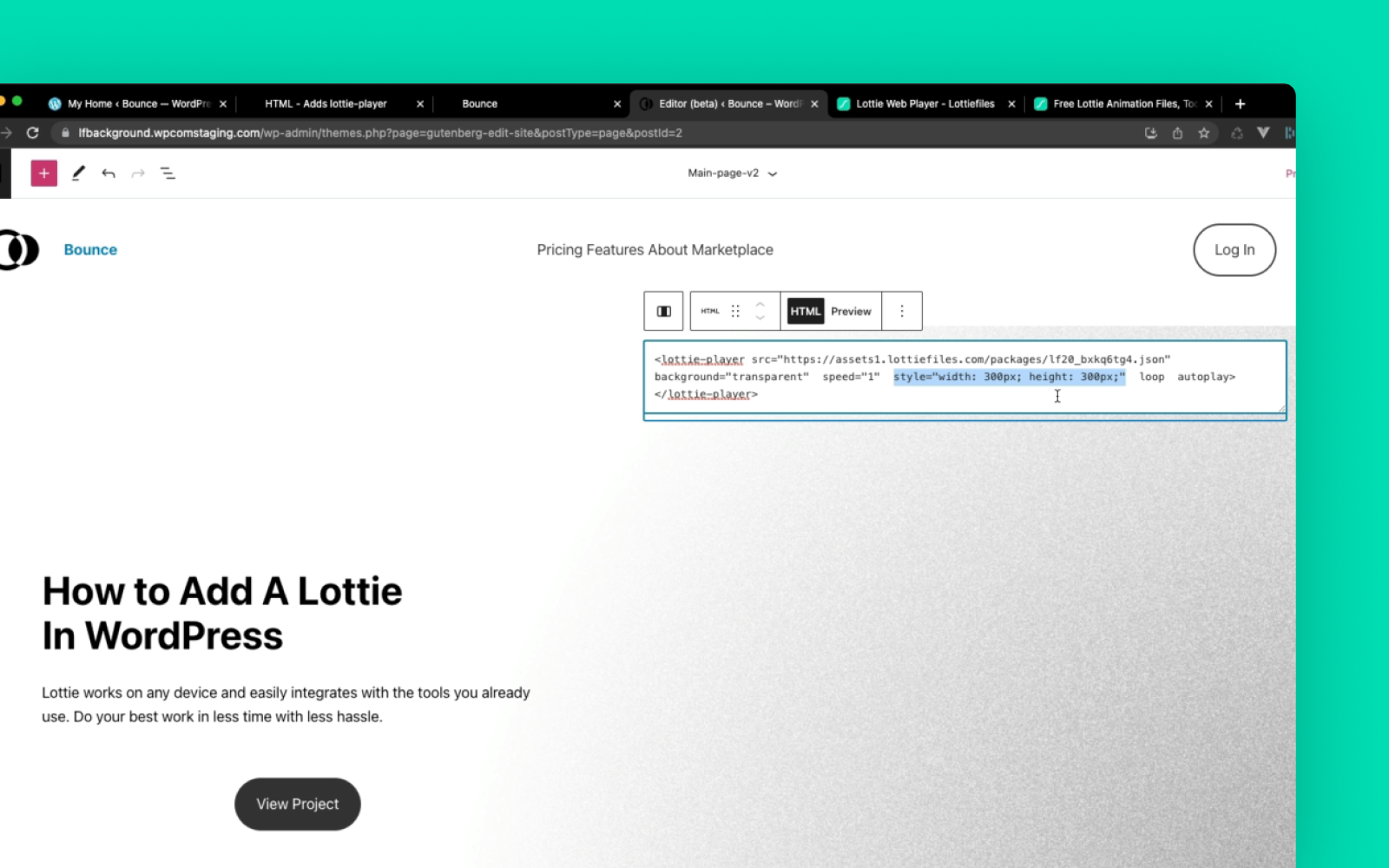
It’s easy to add Lottie animations to your WordPress site with code, but there’s one downside. When you edit animations, you’ll have to switch back and forth between the Gutenberg editor in WordPress and a preview of your site to see the changes. This makes building pages really slow. Fortunately, the LottieFiles for WordPress plugin can help you immediately preview changes.
## **How to add Lottie animations with the LottieFiles for WordPress plugin**
[Embedded content](https://www.youtube.com/embed/7dXRQ1KHxNg?feature=oembed)
Here’s how to add a Lottie animation that auto-plays and loops when the page is loaded.
- Install the LottieFiles for WordPress plugin.
- In the WordPress Gutenberg editor, add a new block.
- Search for the **Lottie** block and insert it.
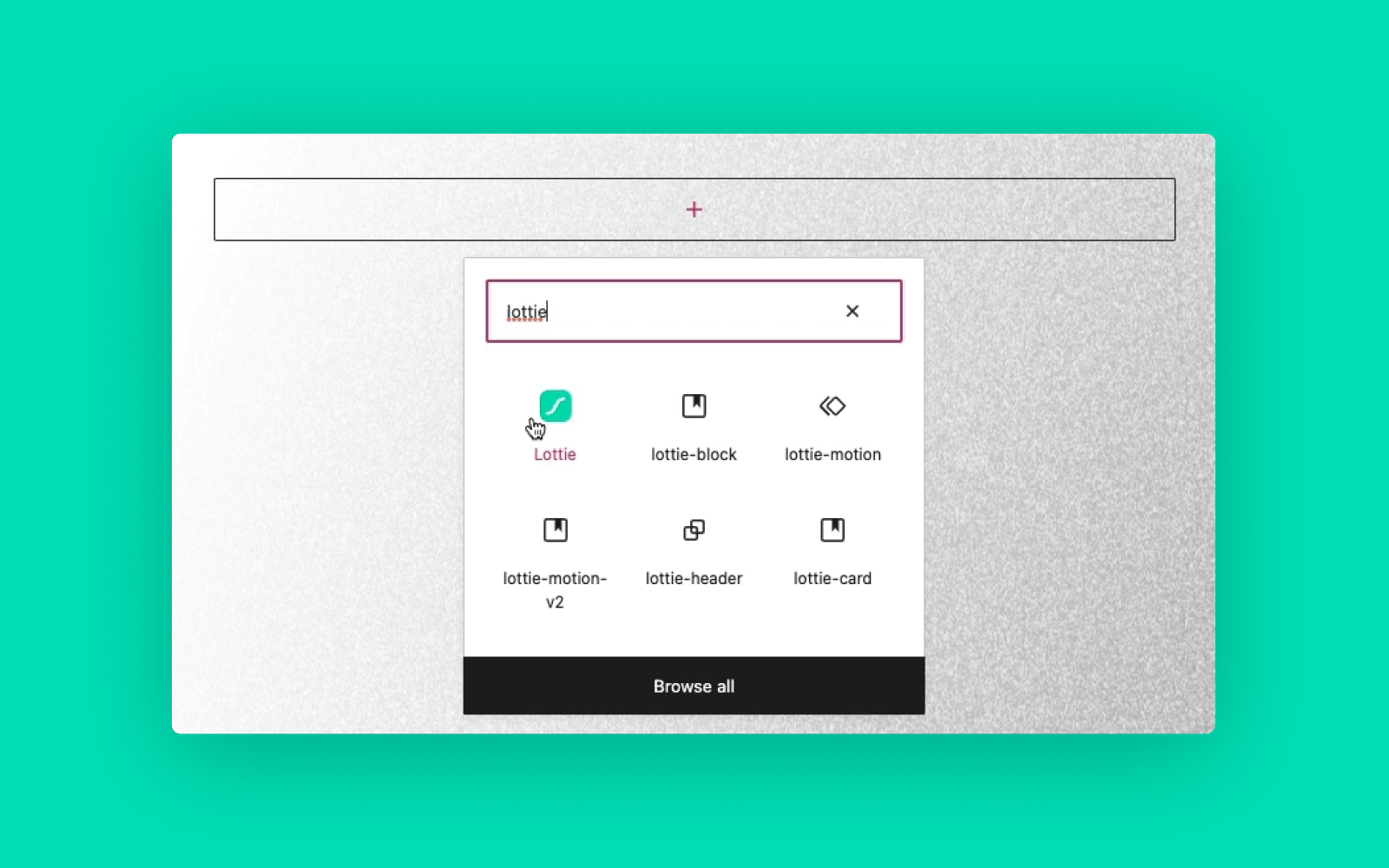
- To add a Lottie animation, you can choose from a few options:
- Click **Discover animation** to browse the LottieFiles animation library
- Click **Media Library** to browse Lottie animations you’ve uploaded to WordPress
- Click **Insert from Url** to paste a Lottie JSON link
- Once added a Lottie animation, you’ll see a preview of it in the Gutenberg editor.
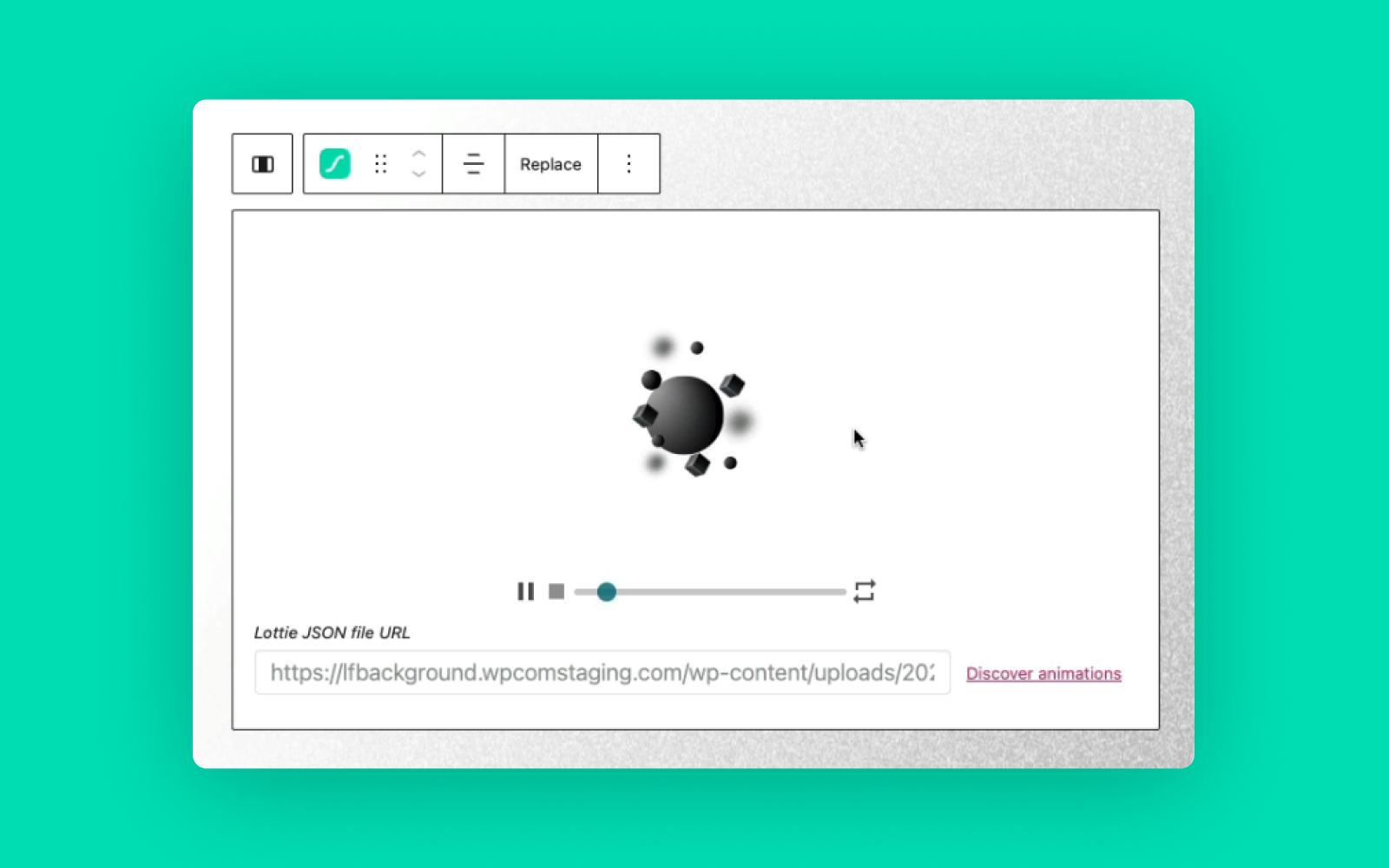
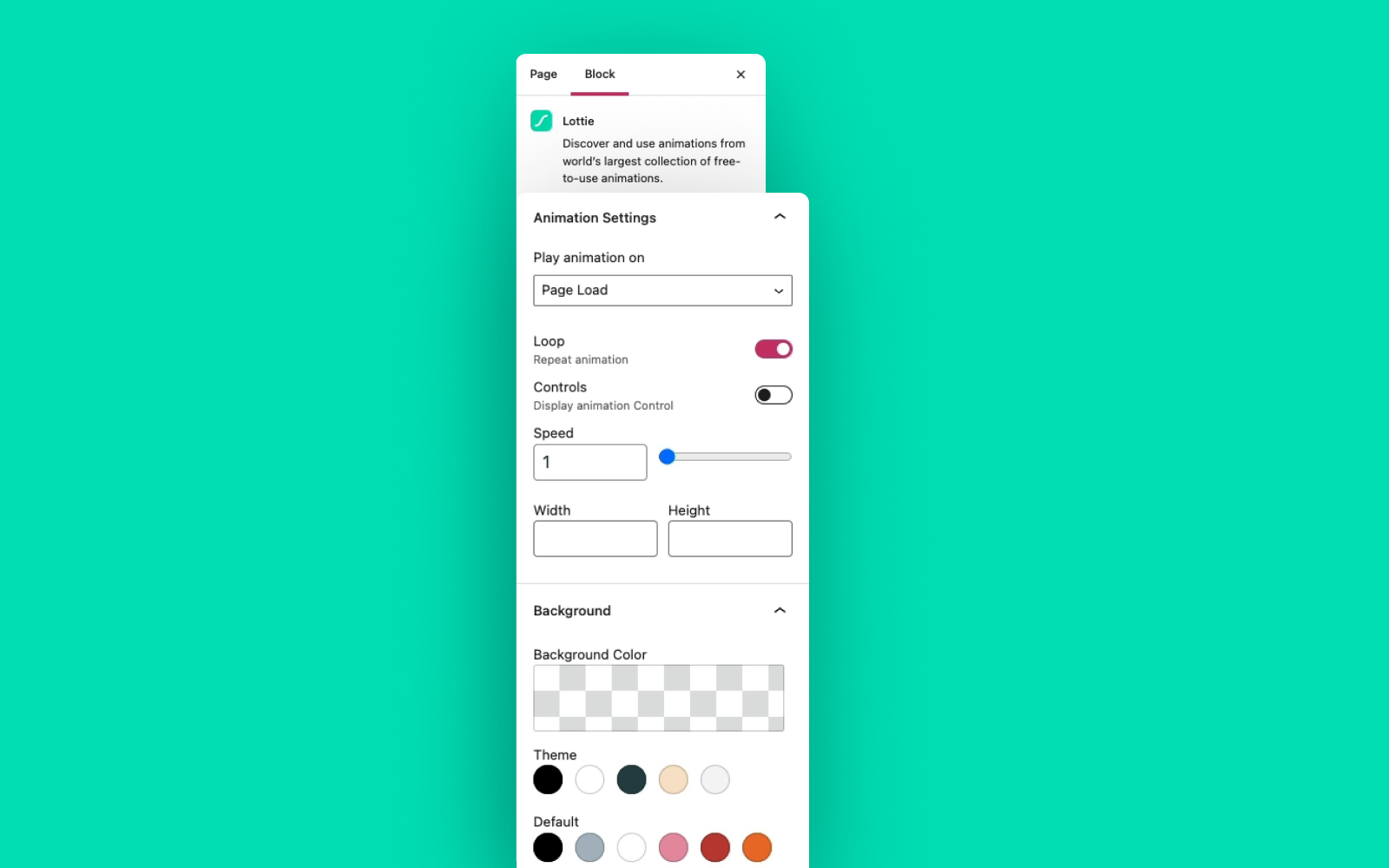
And that’s it! You can adjust the animation settings in the right-hand panel. For instance, you could give your animation a transparent background, change its width and height, trigger the animation with different interactions and more.
Get LottieFiles for WordPress
## **How to use a Lottie animation as a background in WordPress**
[Embedded content](https://www.youtube.com/embed/i2LP34t__Yc?feature=oembed)
Here’s how to use the LottieFiles for WordPress plugin (and a bit of custom CSS) to use a Lottie animation as a background in a section of your page.
- Install the LottieFiles for WordPress plugin.
- In the WordPress Gutenberg editor, add a new [**Cover block**](https://wordpress.com/support/wordpress-editor/blocks/cover-block/). A Cover block lets you display an image that you can add other elements – like text or images – over it.
- Add a new block in the Cover block.
- Search for the **Lottie** block and insert it.
- Add a Lottie animation through **Discover animation**, **Media Library** or **Insert from Url**. For this tutorial, we’ll **Insert from Url** and paste the following Lottie JSON url.
```HTML
https://assets5.lottiefiles.com/packages/lf20_uqaiiqu0.json
```
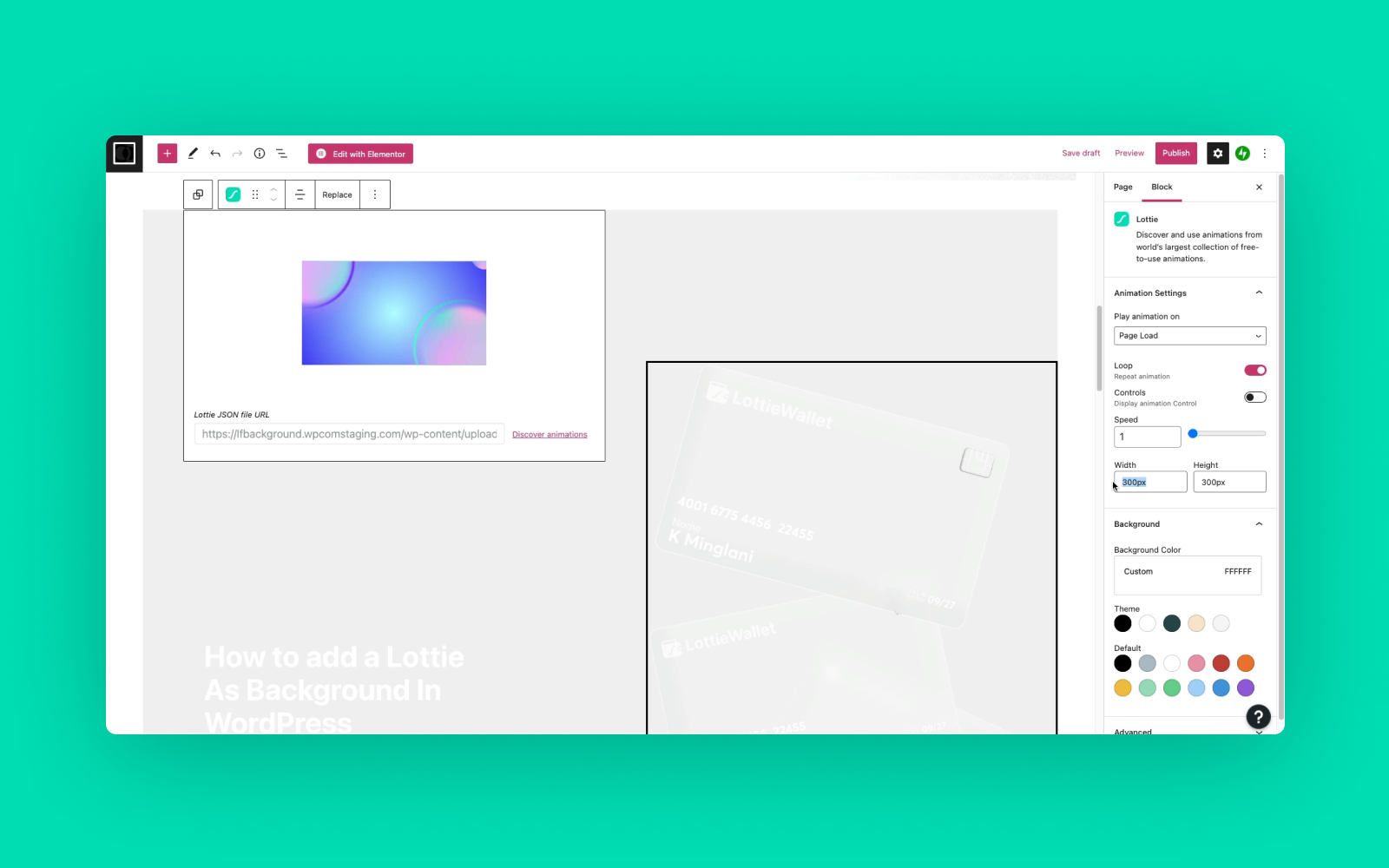
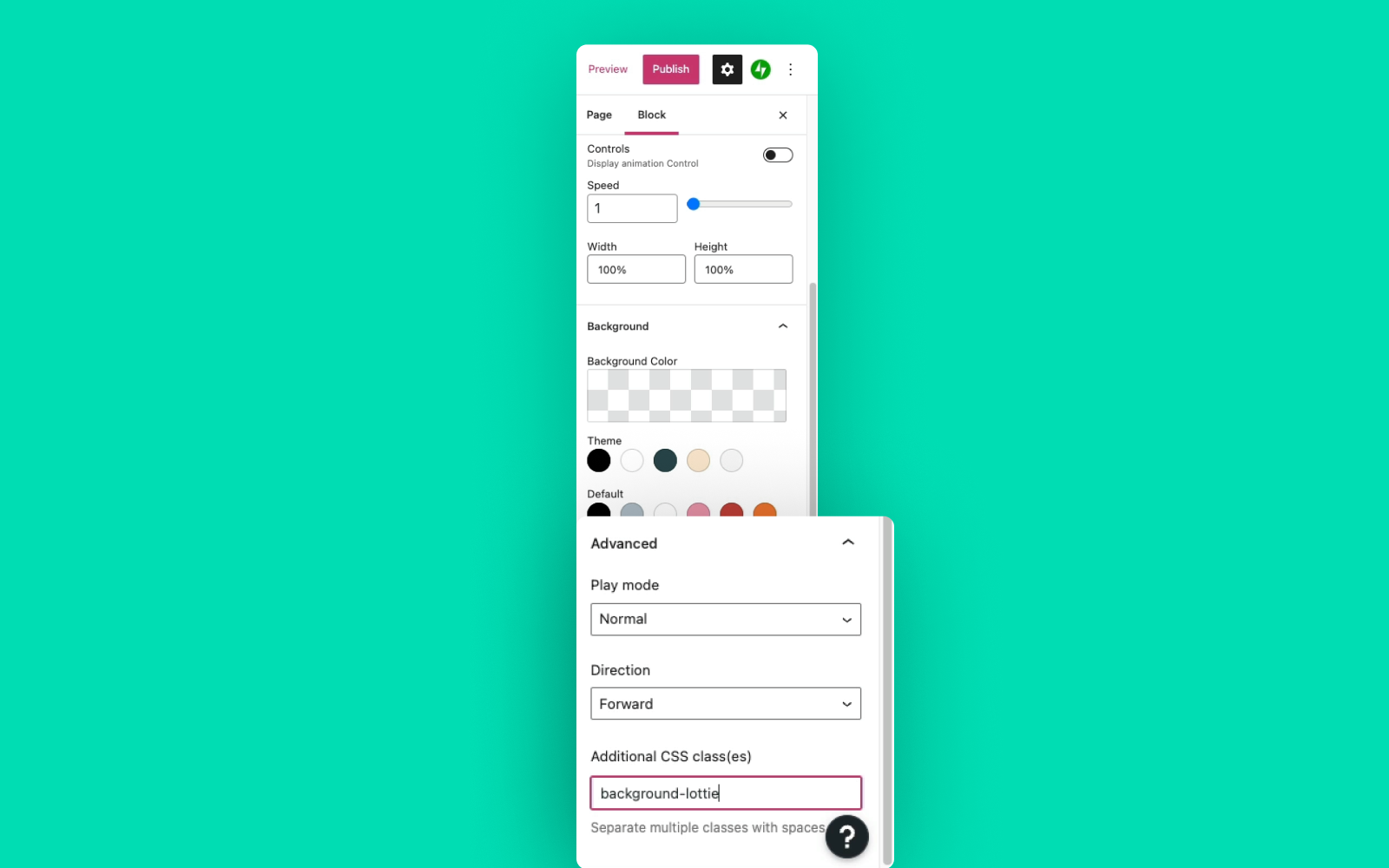
- Untick **Controls**.
- Set width and height to 100%.
- Set a transparent background by double-clicking any color.
- Under the **Advanced** panel, add an additional CSS class called **background-lottie**.
- Go to the WP admin.
- Go to the Simple Custom CSS and JS plugin.
- Click **Add CSS Code**.
- Give it a title of **background-lottie**.
- Add the following CSS code in the editor and click **Publish**.
```CSS
.background-lottie {
position: absolute;
width: 100%;
height: 100%;
left: 0;
top: 0;
min-inline-size: max-content;
z-index: -1000;
}
```
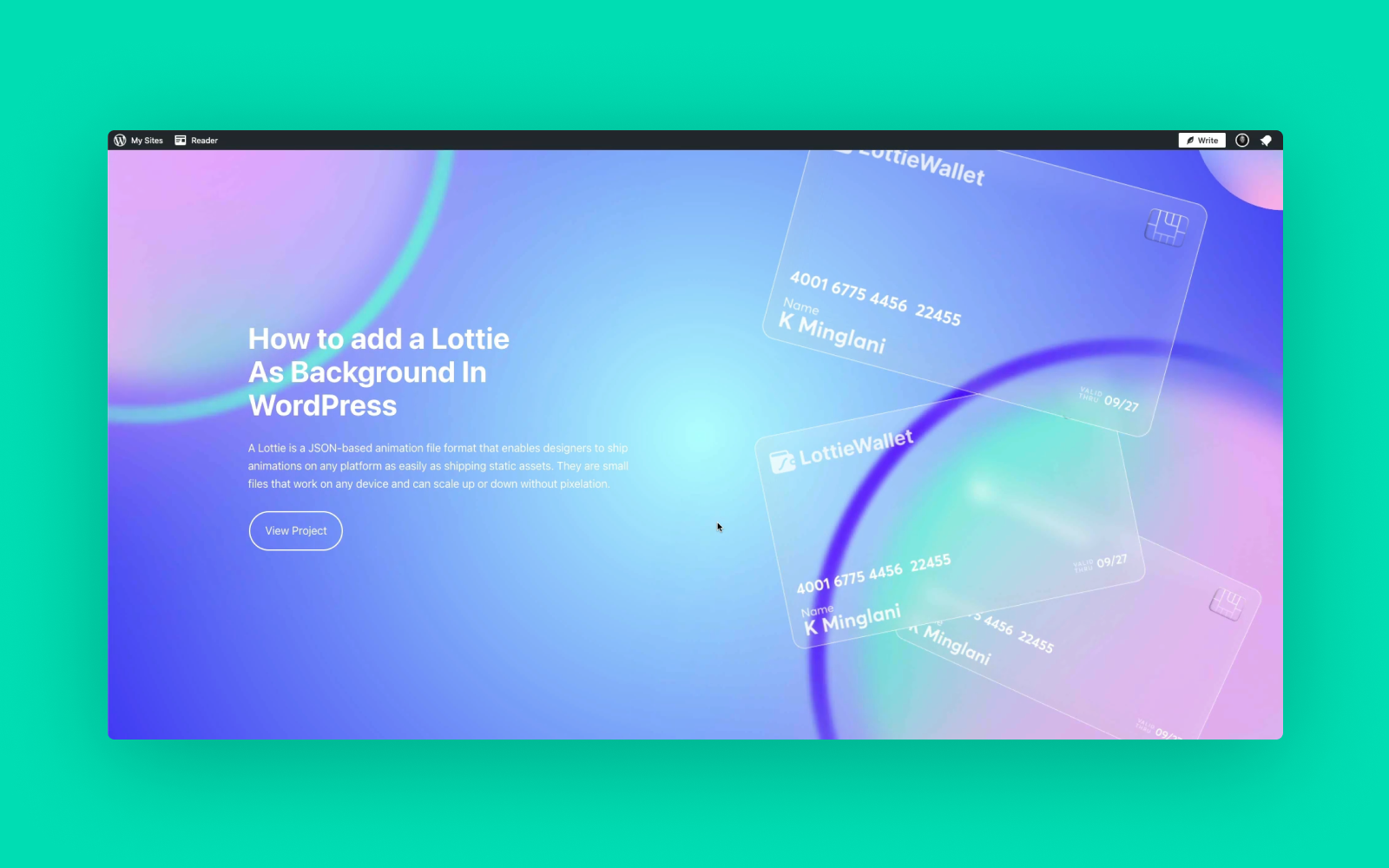
The CSS code above makes sure that your Lottie animation fills the section of the screen, and is placed behind all the other elements on the page.
## **How to create a scroll-based Lottie animation in WordPress**
[Embedded content](https://www.youtube.com/embed/PvaSJlYaSXU?feature=oembed)
Here’s how to synchronize animations with the scrolling of the page, using the LottieFiles for WordPress plugin.
- Install the LottieFiles for WordPress plugin.
- In the WordPress Gutenberg editor, add a new block.
- Search for the **Lottie** block and insert it.
- Add a Lottie animation through **Discover animation**, **Media Library** or **Insert from URL**. For this tutorial, we’ll **Insert from Url** and paste the following Lottie JSON url.
```HTML
https://assets5.lottiefiles.com/packages/lf20_l5u2mpnv.json
```
- In the right-hand panel, untick **Controls**.
- Remove the text in the **width** and **height** options.
- Under the **Play animation on** dropdown menu, choose **Scroll**.
That’s it! You can preview your page by clicking **Save draft** and **Preview** in the top right corner.
## **How to play a Lottie animation on hover or click in WordPress**
[Embedded content](https://www.youtube.com/embed/dMd-kKclm5A?feature=oembed)
Here’s how to trigger the playback of a Lottie animation by hovering over it or clicking it.
- Install the LottieFiles for WordPress plugin.
- In the WordPress Gutenberg editor, add a new block.
- Search for the **Lottie** block and insert it.
- Add a Lottie animation through **Discover animation**, **Media Library** or **Insert from Url**. For this tutorial, we’ll **Insert from Url** and paste the following Lottie JSON url.
```HTML
https://assets9.lottiefiles.com/packages/lf20_n8nbikex.json
```
### **a) How to play a Lottie animation on scroll**
- In the right-hand panel, under the **Play animation on** dropdown menu, choose **Hover**.
If you hover over your animation, it should start playing. But if you remove your mouse, the animation will play in reverse, back to the start.
### **b) How to play a Lottie animation on click**
- Under the **Play animation on** dropdown menu, choose **Click**.
Now, if you click on the animation, it will start playing.
## Learn more about adding motion to WordPress
With WordPress and LottieFiles, you can create animated web designs without designers, developers or the need to build everything from scratch. If you’re looking for inspiration, check out these seven [WordPress sites built with Lottie animations](https://lottiefiles.com/blog/inspiration/wordpress-sites-with-lottie-animations). Or for more resources on how to create motion magic, check out more [tutorials on our blog](https://lottiefiles.com/blog/tips-and-tutorials) or on the [LottieFiles YouTube channel](https://www.youtube.com/c/LottieFiles).
Get LottieFiles for WordPress
---
## Related Articles
- [How to Create Animations with AI Using Lottie Creator WebMCP](/blog/working-with-lottie-animations/how-to-create-animations-with-ai-using-lottie-creator-webmcp)
- [How to Build Your First Lottie Creator Plugin: Create and Animate a Rectangle](/blog/working-with-lottie-animations/how-to-build-lottie-creator-plugin-create-and-animate-a-rectangle)
- [How to Develop and Publish a Plugin for Lottie Creator](/blog/working-with-lottie-animations/how-to-develop-and-publish-a-plugin-for-lottie-creator)
- [How to Publish a Lottie Creator Plugin to Extensions](/blog/working-with-lottie-animations/how-to-publish-a-lottie-creator-plugin-to-extensions)