
How to Optimize Lottie for Production

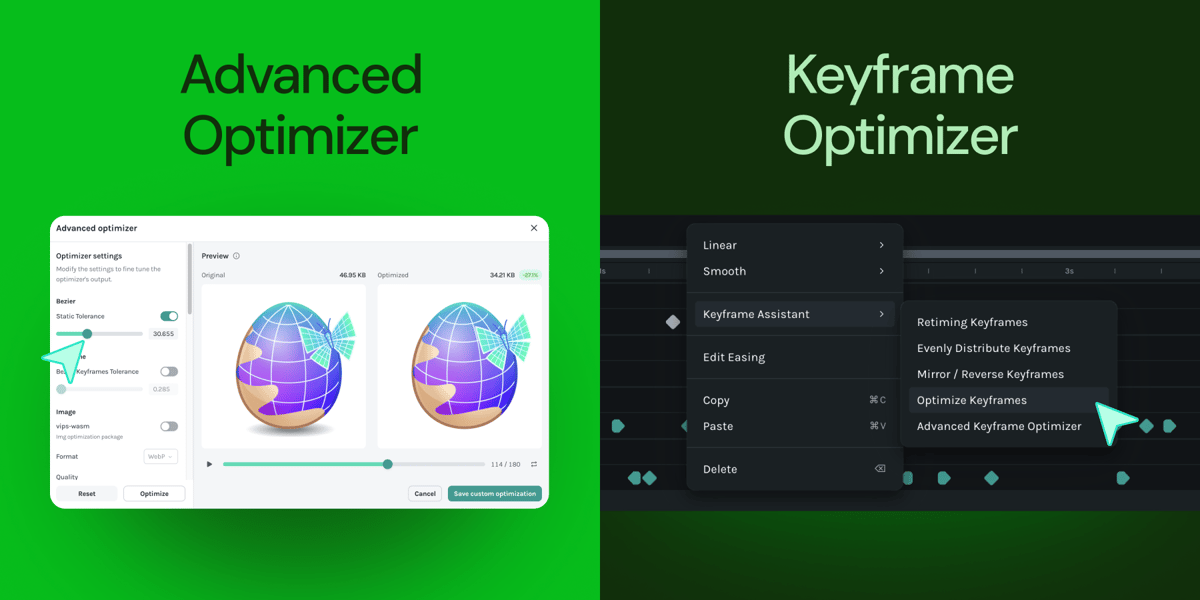
If you've ever shipped a Lottie animation and noticed it slowing down a page load, draining battery on mobile, or causing janky frame drops, you're not alone. Most Lottie files come straight out of After Effects with a payload that was never designed for production.
Unoptimized Lottie JSON files commonly include:
- Redundant keyframes at every frame, even when nothing changes
- Expressions and assets that inflate file size by 2x to 5x
The result? Animations that are heavier, slower, and harder to maintain than they need to be. So, here is how you can optimize your Lottie.
Start by converting to dotLottie. Gzip compression and asset bundling alone can reduce file size by up to 80%. The two tools below take it further.
Tool 1: The Keyframe Optimizer
The Keyframe Optimizer lives inside Lottie Creator and addresses over-keyframing at the best possible moment: before the animation is exported. Working at the source means you have full visual feedback, fine-grained control, and the ability to undo.
Because you're optimizing inside the editor and not on a finished file, you can see the effect of every change in real time and step back if anything looks off.

How to Access It
- Select the keyframes you want to simplify in your timeline. You can select multiple at once.
- Right-click to open the Keyframe Assistance menu.
- Choose Quick Simplify for a one-click pass using defult settings, or Advanced Simply to open the full configuration diolog.
Quick Simplify vs. Advanced Simplify
Quick Simplify applies a sensible default pass and is the right choice for most animations, it gets the job done in one click with no configuration required.
Advanced Simplify opens a dialog with a Mode toggle, giving you explicit control over how the optimizer evaluates and removes keyframes.
The Two Modes Explained
| Value Mode | Time Mode | |
|---|---|---|
| How it works | Looks at how much a property actually changes between keyframes | Looks at how close keyframes are on the timeline |
| Optimization logic | If the difference falls within the tolerance threshold, the keyframe is removed | If keyframes fall within the tolerance window, they are consolidated |
| Best for | Over-iterated animations where values are very close together | Baked animations exported frame by frame |
| Use when | You added too many manual keyframes and the motion feels over-controlled | Your animation came from a frame-by-frame export workflow |
Using the Tolerance Slider
The tolerance slider is the most important control in the Advanced Simplify dialog. Think of it as a dial between precision and efficiency:
- Lower tolerance = More conservative. Fewer keyframes are removed, and the result stays very close to the original motion. Good starting point if you're unsure.
- Higher tolerance = More aggressive. More keyframes are removed for a cleaner, leaner result — but there's a greater chance of subtle motion changes. Always preview before accepting.
Tool 2: The Advanced Optimizer
The Advanced Optimizer lives in the LottieFiles download flow — it's the final checkpoint before your file leaves the platform. Where the Keyframe Optimizer targets animation timing data, the Advanced Optimizer works at the structural level of your Lottie JSON, stripping out everything that isn't actively contributing to the final output.

This is where you eliminate the structural excess: unused layers, redundant properties, over-precise decimal values, and anything else that adds file weight without adding anything to what users actually see.
What's in the Settings Panel
The left side of the Advanced Optimizer dialog gives you granular control over every category of optimization. Here's what each setting does:
| Setting | What it does |
|---|---|
| Bezier — Static Tolerance | Simplifies Bezier curves by removing anchor points that fall within the tolerance threshold. This reduces path data while preserving the visual shape of the motion. |
| Keyframe — Bezier Keyframes Tolerance | Applies Bezier simplification to keyframe interpolation data, optimizing how easing curves describe acceleration and deceleration between animation states. |
| Image | Controls compression settings for embedded images in the animation. Enabling vips-wasm allows more advanced image compression while maintaining visual quality. |
| Truncate | Shortens property names in the JSON file to reduce text payload size without affecting how the animation renders. |
| Round Float Numbers | Reduces decimal precision across numeric values in the file (for example, 12.847291 becomes 12.85), saving space across the animation data. |
| Exclude | Removes properties that are not required for rendering, such as metadata or editor-specific information. |
| Exclude Defaults | Removes properties that match default renderer values (such as normal blend modes or hidden flags), avoiding unnecessary data in the exported file. |
In practice, a 62KB animation can drop to 34KB with default settings, plus a 45% reduction with no visible quality loss.
The Side-by-Side Preview
The right side of the dialog shows your original animation alongside the optimized version in real time. File sizes and percentage reduction are displayed at the top. You can scrub through the animation at any frame to check for visual differences before committing.
Once you're satisfied with the result, hit Save custom optimization to download the final file.
Ship Optimized Lottie Files Now
The Keyframe Optimizer is in Lottie Creator, ready to use the next time you're working on an animation. The Advanced Optimizer is waiting in the download flow on LottieFiles. Both take under a minute to run.
You may also like

How to add Lottie JSON and dotLottie animation files on Framer
Create an amazing animated website with just a few clicks.

Explore Lottie Animation Format, Lottie Players and the Latest Tools and Features
Get to understand the Lottie creation and the ecosystem around Lottie.

How to Optimize Lottie Files for Faster Page Load Speeds
Here are three ways to reduce the size of your Lottie animations for faster load speeds.