


Figma to Lottie export can be done in three main ways: preset, frames, and prototype. Each method suits different types of projects, so let's explore them to find the best fit for your workflow.
Export Figma Motion keyframes directly as Lottie or dotLottie. Supports transform, opacity, color, stroke width, trim-path draw-on, easing, and baked spring animations and more.
Select the frame, then open the LottieFiles plugin.
Click Animate to preview, then export as Lottie or dotLottie.
Important: Figma Motion support is currently in beta, and some known issues remain.
A quick way to export a single frame with a predefined animation. Ideal for simple animations like icons, logos, or micro-interactions that don't require complex transitions.
In the LottieFiles plugin, choose a preset from the dropdown.
Preview & export your animation.
Tip: The frame must NOT be a starting point of a prototype flow. If it is, the plugin will use Prototype Flow mode instead.
Click "Animate" button in the Lottiefiles plugin.
Preview & export your animation.
Export a prototype flow to create more complex animation. Best for complex animations with various transitions, like a UI interaction.
Click "Animate" button in the Lottiefiles plugin.
Preview & export your animation.
When your prototype has interactive triggers like click, hover, press, the plugin can export it as a dotLottie with a state machine — making the animation interactive in the final product.
In the Lottiefiles plugin, hit "Animate" button.
Preview & Export your animation as .lottie to keep the interactivity.
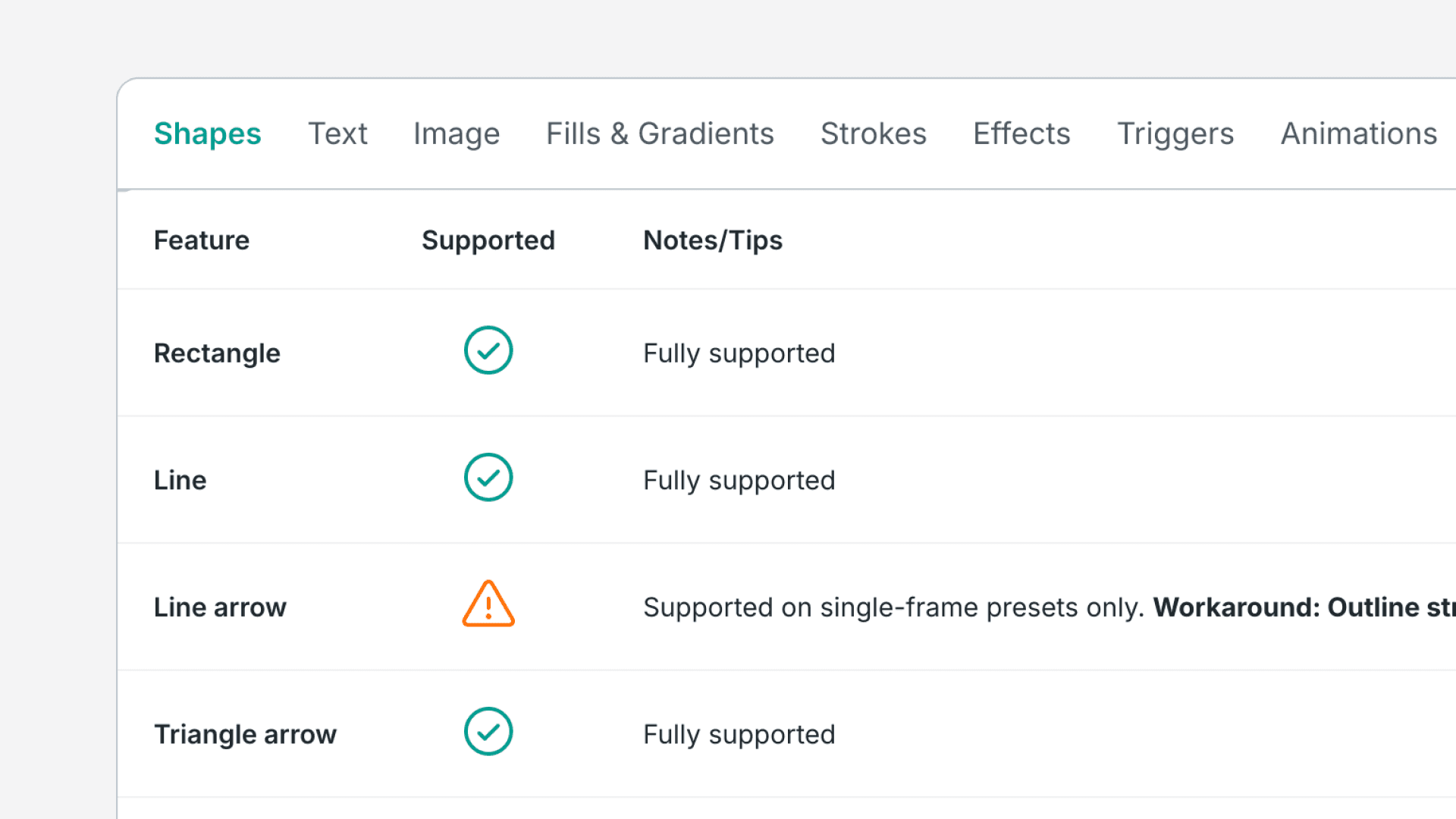
To avoid render failures, use only the features supported by Lottiefiles for Figma. Below is a table of supported features, their status, and any limitations or tips.
Interactions
Figma Motion
Actions
Shapes
Text
Fills
Strokes
Effects
Animations
Curves
Others
Merge Paths
Feature
Supported
Notes/Tips
On click
Fully supported
While hovering
Fully supported
While pressing
Fully supported
Mouse enter
Fully supported
Mouse leave
Fully supported
Mouse down
Fully supported
Mouse up
Fully supported
After delay
Fully supported, Timed auto-transition
Key / Gamepad
Input is created but cannot be fired byuser interaction in the player
On drag
Transition is created but code-only — set on_drag input via API
Bouncy
Fully supported
Slow
Fully supported
Custom Spring
Fully supported
Text Stroke
Not supported
Follow these tips to ensure your Figma designs convert seamlessly into Lottie animations.
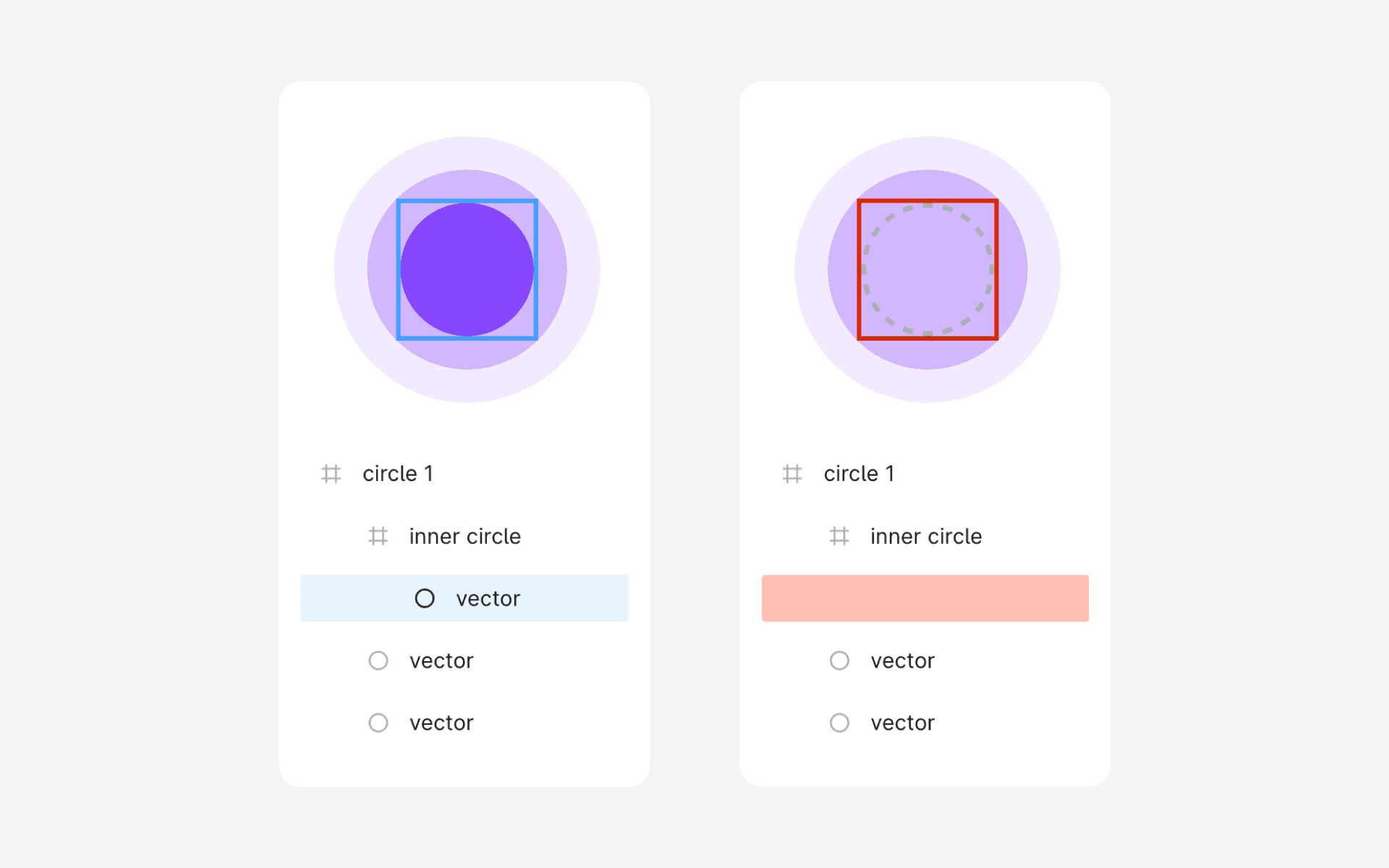
Instead of deleting layers, hide them by setting their opacity to 0.
Work backward from the final frame, adjusting visibility and positions as needed.
Stick to supported Features
Avoid using component instances or colors from external libraries, as they may not be supported.
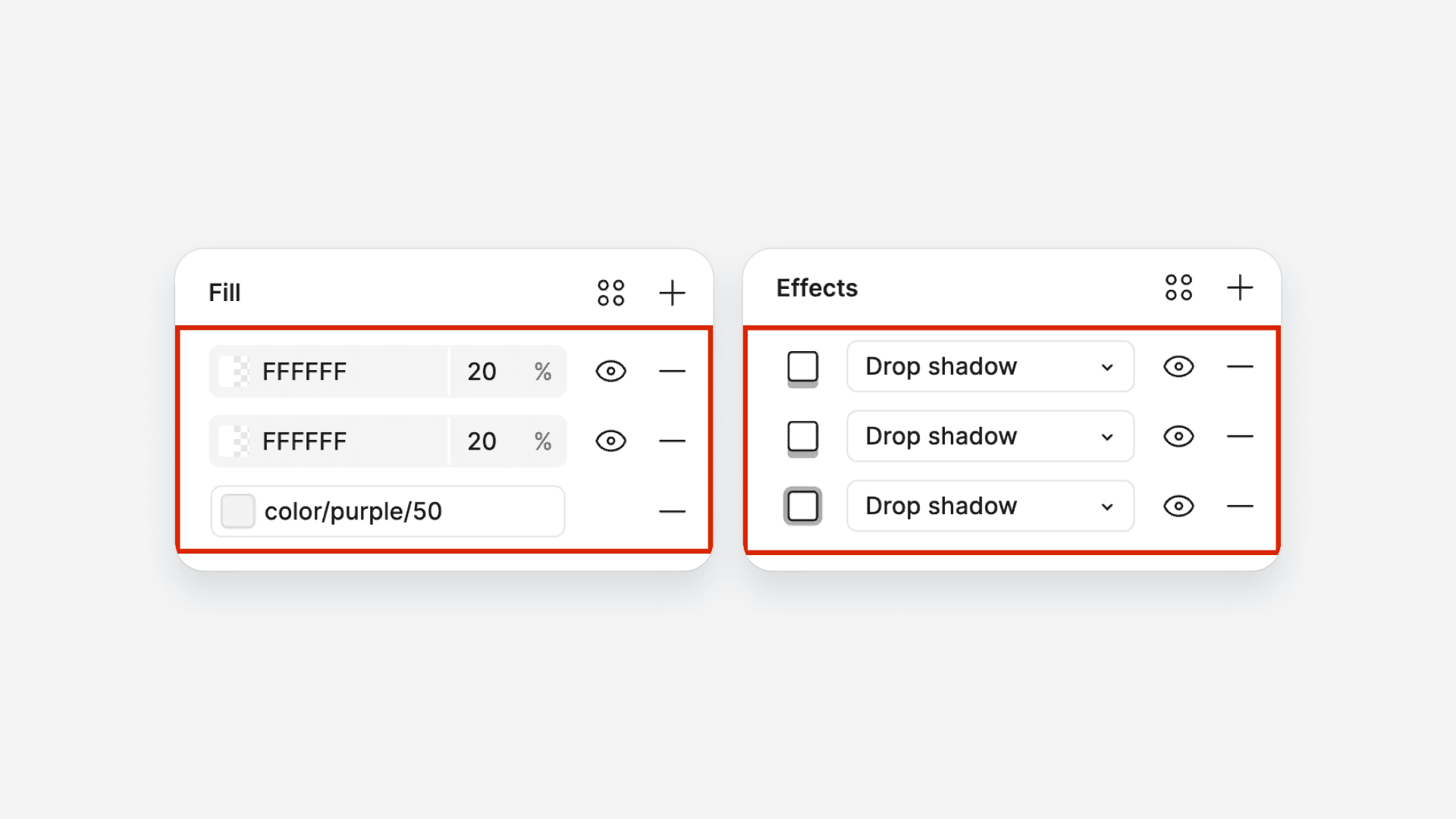
Avoid using stacked fills & effects
Avoid using angular or diamond gradients, as they’re not fully supported.
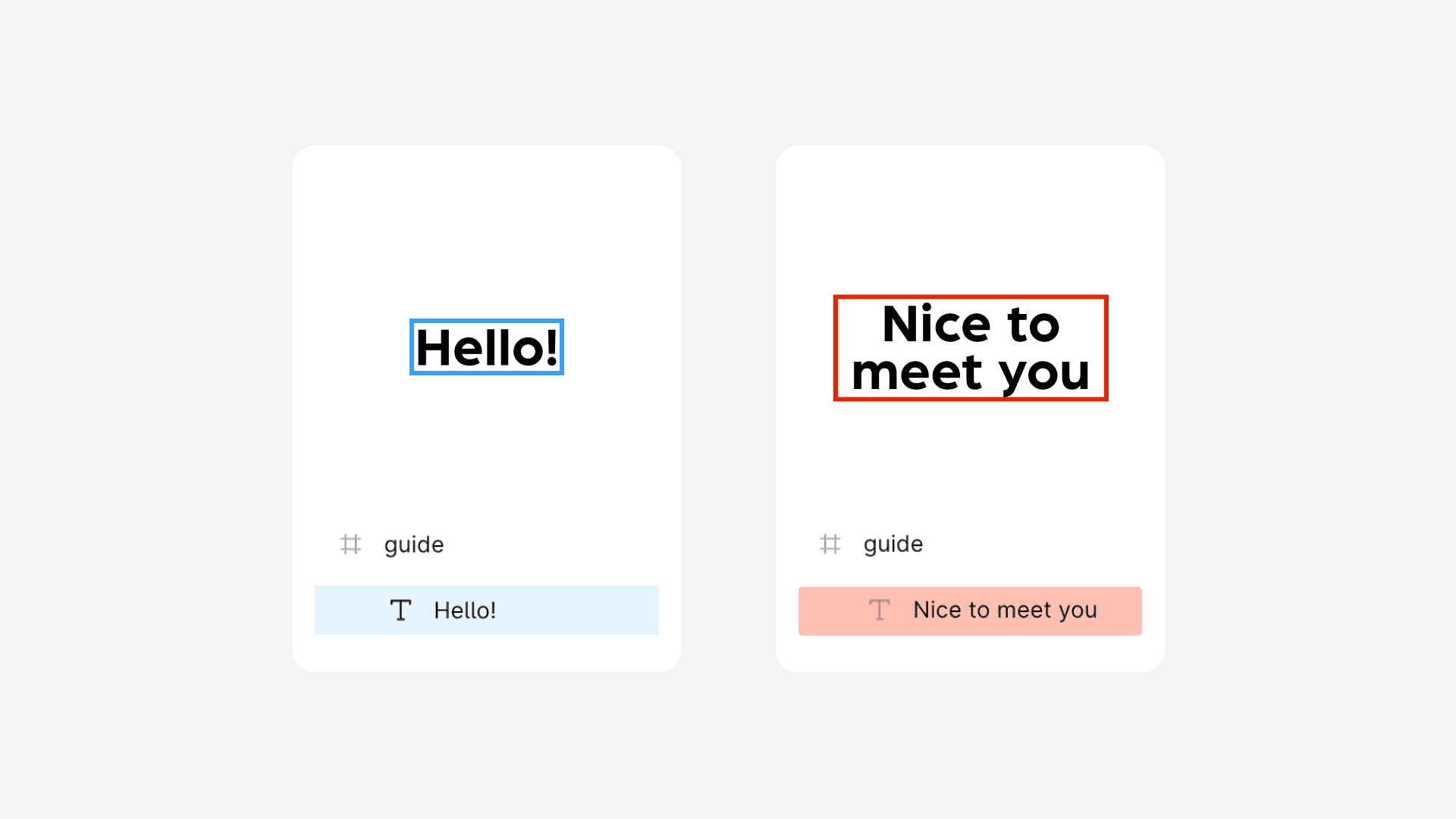
Use consistent layer name & text values
Changing text within the same layer can cause render failure.
Keep layer names consistent across all frames.
State machine not available
Your prototype uses unsupported interactions (Back, Close overlay, Open overlay, Swap overlay, Scroll to, or URL actions). Replace them with Navigate to actions to enable interactive export.
How do I hand-off the animation?
Handoff is simple: all interactions, state machines, and theming are stored inside the .lottie file at the format level. Your developer doesn't need to rebuild any interaction logic — they just load the file (or CDN URL) into a dotLottie player and everything works. No extra configuration needed.
How to share your animation with developers:
In the plugin, open the Workspace tab
Click ... on your animation → "Open in browser"
On the asset page, go to the Handoff tab for CDN link and embed code
Share the asset page URL — your developer gets preview, download, and CDN link in one place
Tip: Share the workspace URL instead of sending a file — your developer always gets the latest version. All workspace assets are accessible from any tool (After Effects, Framer, web browser) without opening Figma. Learn more about LottieFiles DAM →
Tell your developer:
Use
@lottiefiles/dotlottie-webor@lottiefiles/dotlottie-react— notlottie-webInteractive Lottie requires a dotLottie player — standard lottie-web does not support state machines
Interactive Lottie doesn't work in my app
Make sure your developer is using @lottiefiles/dotlottie-web (not lottie-web) and that you downloaded as .lottie (not .JSON). State machines and theming are .lottie-only features.
Animation looks different from Figma prototype
Spring-based easings (Gentle, Quick, Bouncy, Slow) are approximated to bezier curves — the motion will feel slightly different
Non-Smart Animate transitions (Dissolve, Push, Slide) preserve timing but the visual effect may differ
Overshoot bezier curves are clamped to 0–1 range
If it looks different in the final product, check if the product uses a different renderer (ThorVG vs SVG)
Gradient not rendered properly
A known issue with gradients is that only simple linear and radial gradients are supported. Apply gradients correctly: ensure there are no extra or duplicate gradient fills. Double-check that your gradient doesn't have incompatible stops or blending.
Click/hover doesn't work on exported Lottie
The element might be a Group — convert it to a Frame (right-click → Frame selection)
The element might have 0% opacity — set it to at least 1%
The element's layer name might not match in the exported animation
Only one interactive instance per frame is supported — if you have multiple, only the first works
Text changes cause render failure
Don't change text content within the same text layer across frames. Instead, create separate text layers for each text value and toggle their visibility.
Enroll in the Figma to Lottie Certification Program to level up your skills, or reach out to us at [email protected].