
How to Create Animations with AI Using Lottie Creator WebMCP

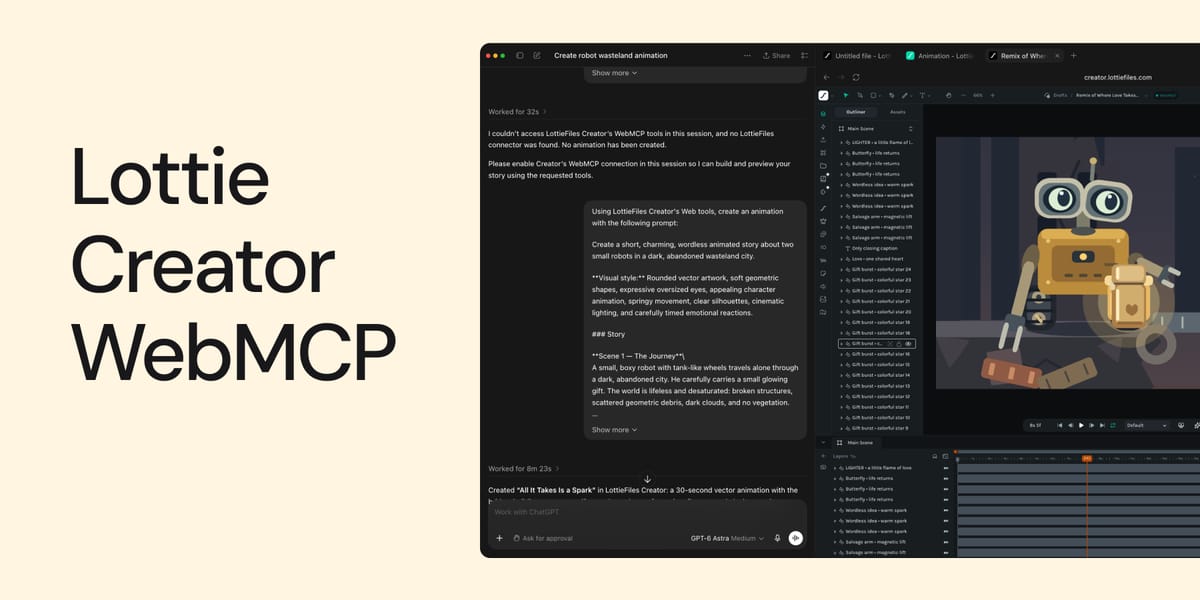
In this tutorial, we'll look at how you can use Lottie Creator WebMCP with AI to create an animation from a text prompt.
Instead of manually building every element of an animation, you can describe what you want to create and let AI interact with Lottie Creator on your behalf.
1. Start with a Prompt
To get started, open the ChatGPT desktop application and enter a prompt
describing the animation you want to create.
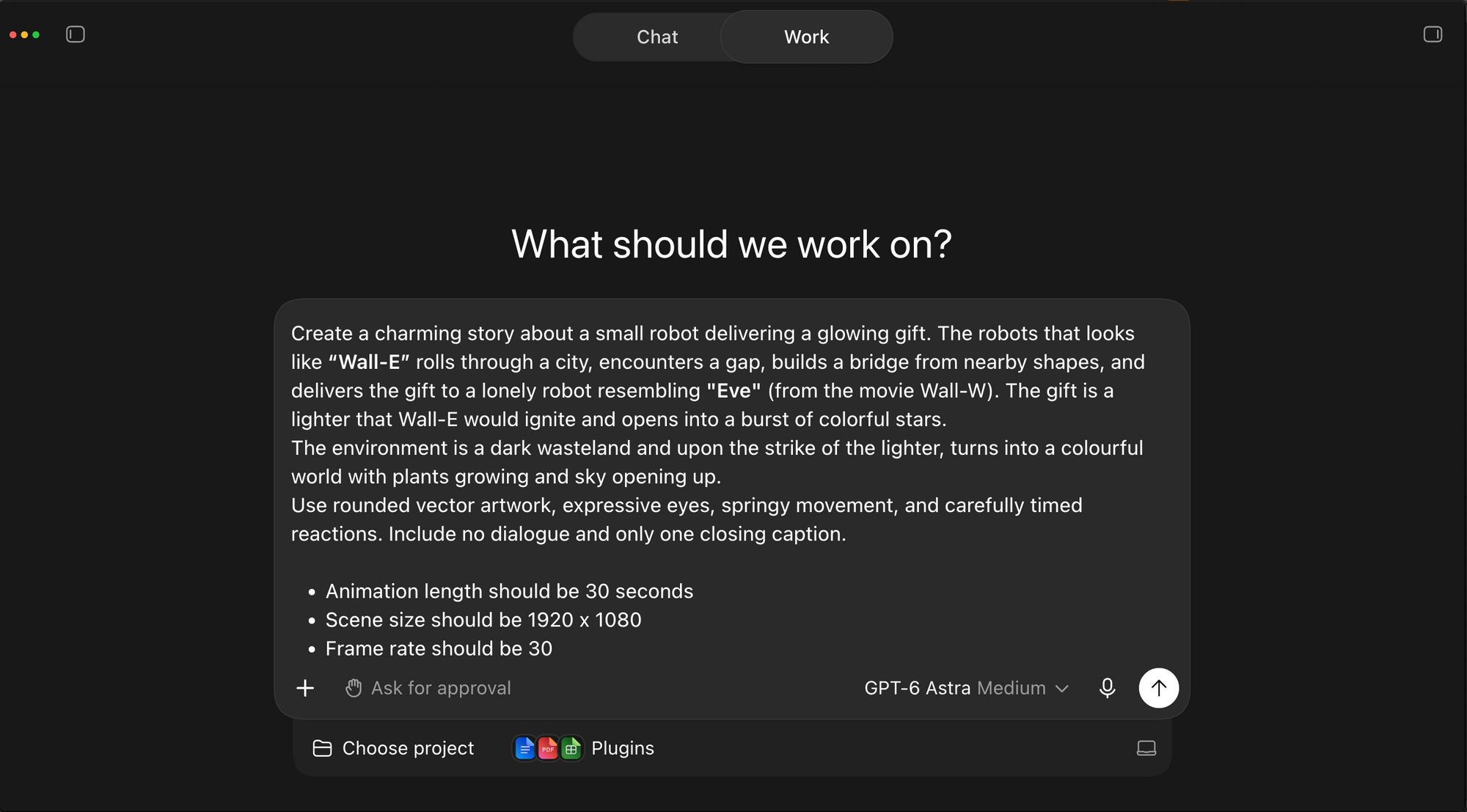
For this example, we're creating a simple animated story about a small robot delivering a glowing gift. It also helps to include additional details such as the duration, frame rate or size. For this example, we're asking for:
- Animation length: 30 seconds
- Format: Landscape
- Frame rate: 30 FPS
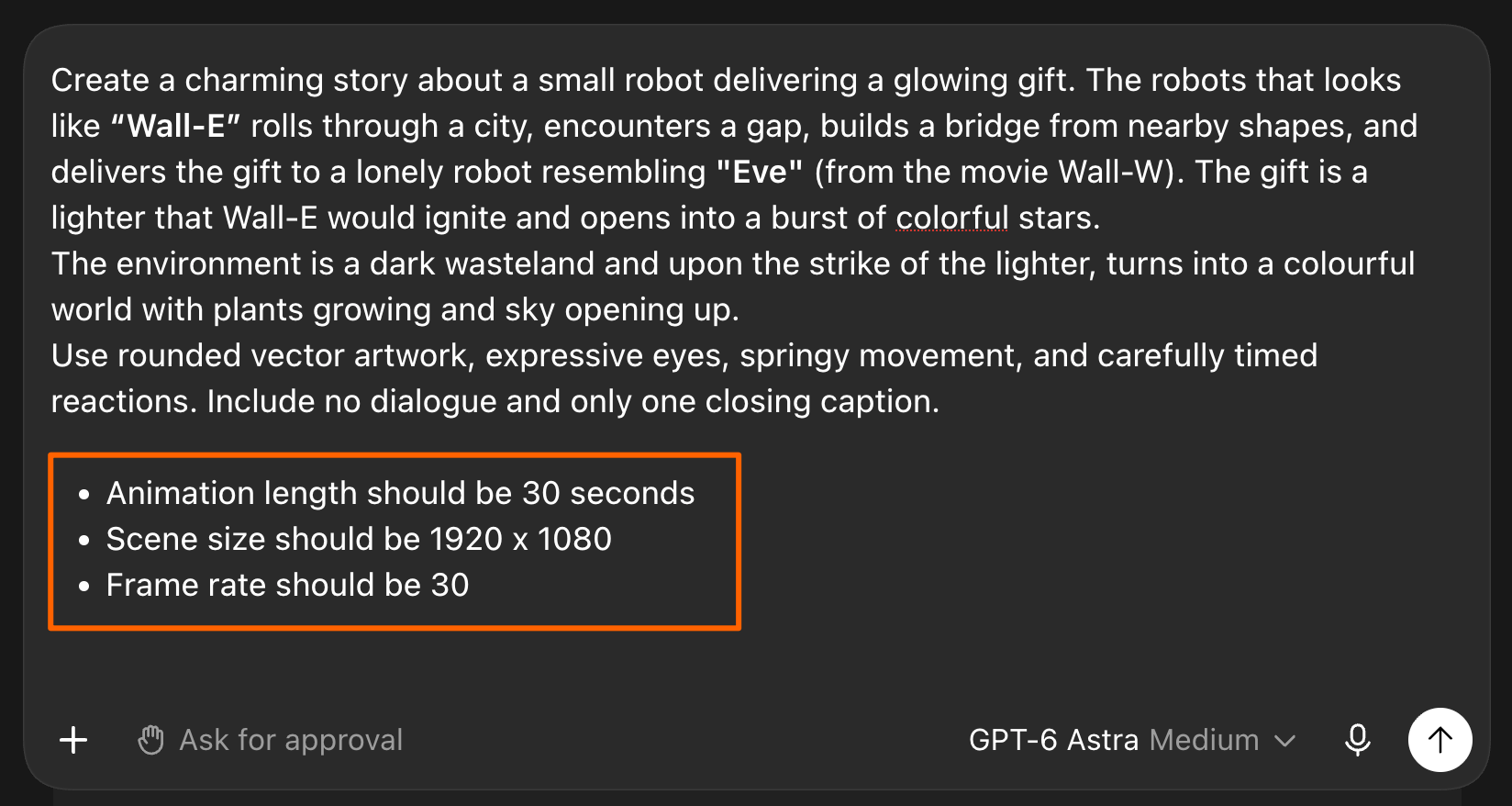
Providing information like duration, format, frame rate, visual style, characters, and actions gives the AI more context about the result you want. Once we submit the request, ChatGPT will process it, open Lottie Creator using its web tools, and begin creating the animation. This process can take some time because the prompt first needs to be interpreted and then translated into actions inside Lottie Creator.
After the generation process is complete, the new animation is ready to preview.

You can play the result directly inside the ChatGPT application to quickly inspect
what was created. For a closer look, you can return to <strong>app.lottiefiles.com</strong> and open the newly created animation directly in Lottie Creator.
The animation created through WebMCP is now available inside Creator, where you can view and continue working with it.

Keep in mind that the first generation doesn't have to be the final result. After the animation has been created, ChatGPT has context about the current scene. You can therefore continue the conversation and ask it to modify the existing animation. For example, you could ask it to:
- Change part of the animation
- Modify an existing element
- Adjust how something moves
- Refine the overall scene
The quality of an AI-generated animation depends heavily on the quality and level of detail in your prompt.
The more clearly you describe the story, animation settings, visual elements, and
expected behavior, the more context the AI has when creating the scene.
You can also work iteratively: generate an initial version, review the result, and
then use follow-up prompts to make changes.
Lottie Creator WebMCP provides a new way to create animations by combining natural language prompts with Lottie Creator's animation tools. In this example, we went from a text description of a small robot delivering a glowing gift to a complete animation created inside Lottie Creator. From there, you can refine the scene through additional prompts or open it directly in Lottie Creator and keep working with the animation.
You may also like
How to Develop and Publish a Plugin for Lottie Creator
Learn how to create, test and publish a plugin to LottieFiles Extensions.

Lottie/dotLottie vs. GIF: Choosing the Right Animation for You
The two most popular web animation formats, Lottie and GIF, collide head-on. This blog will focus on the 5 most important parameters to tell you who's the boss!
Introducing Motion Copilot 2.0 in Lottie Creator
Motion Copilot is no longer just a keyframing helper; it's a full animation assistant.
Lottie Creator 2.0: A Powerful Web-Based Lottie Animation Tool
Reimagine animation creation with Lottie Creator