
Text Layers now in Lottie Creator


Hey, I’m Ben — and I’ve got exciting news: Text in Lottie Creator is here finally here! 🎉
The team has been hard at work on this for the past 5 months, and we know you’ve been patiently waiting for this moment too.
Before this, a lot of motion-with-text workflows in Lottie Creator ended up converting text into shape layers. It works visually, but it’s “baked in” — meaning edits can get painful (copy changes, localization, multiple versions). So when we worked on this project, we wanted to get it right.

With real text layers, you can:
- Edit copy anytime (without rebuilding your animation)
- Keep text crisp at any size
- Animate typography cleanly (fills, opacity, strokes, range styling)
- Make text dynamic with Motion Tokens (update copy with real data)
Which brings us back to… why did it take 5 months?
Shapes vs. Text
Lottie Creator was optimized for handling shapes, this includes rectangles, ellipses, paths, etc. Anything that fell under the shape category in the Lottie spec. This presented an issue when implementing text, because text is not a shape.
Let’s take a simple animated fill colour as an example:
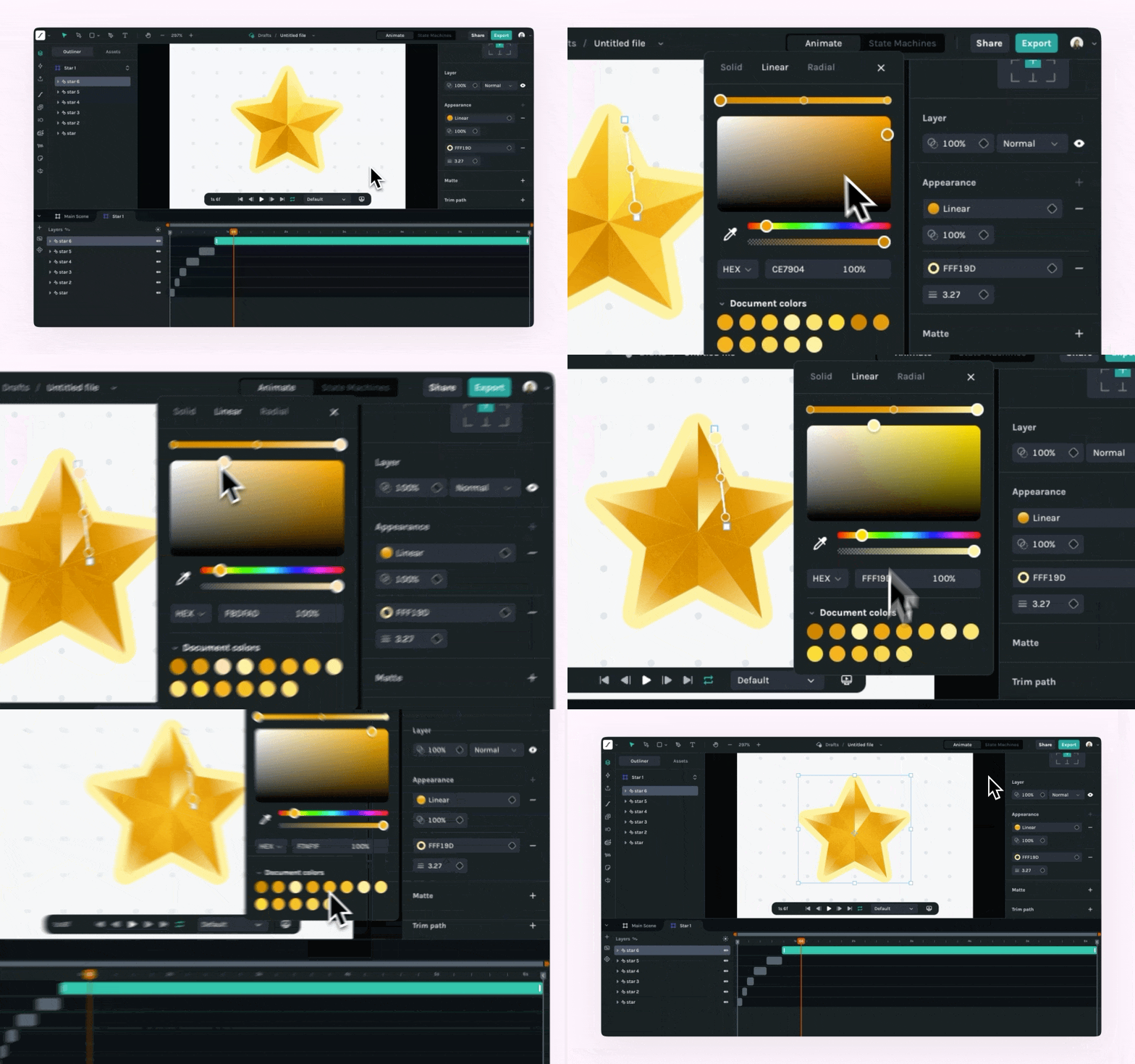
In Lottie, shapes are made up of a group of elements that consist of path data, styling, and transform. These elements can be added and removed as needed.
In order to apply an animated fill, you can apply a fill element. This includes properties like color, opacity, etc., and these properties can each be animated.
So if you want to create a square that animates from red to blue, the Lottie format would look something like:
- Shape Layer
	- "Animated_Red_Rectangle"
	  - Rectangle Path
	    - Position
        - Size
	  - Fill
		  - Color
				- Frame 0 : Red
				- Frame 30: Blue
		- Opacity
		    - 100%
Text in Lottie
Now lets try and do the same thing with text. Lottie Creator makes it seamless, but there is a lot going on in the background.
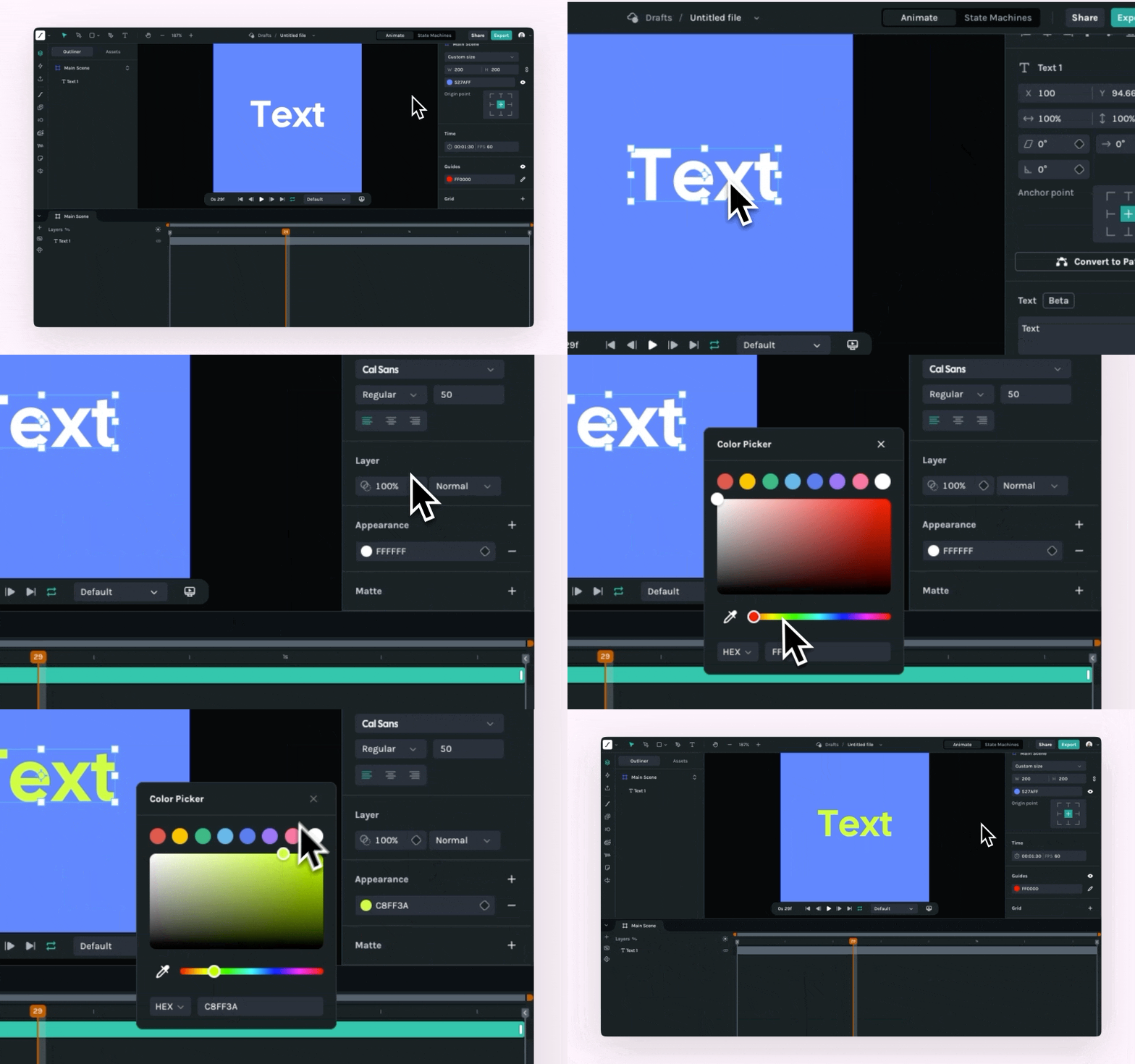
Text is made up of multiple large data structures.
Text Document
First we have the text document, which holds all of the base properties for a text object. This includes color, stroke, font family, font size, alignment, and the actual text string to be rendered.
This alone required us to refactor data paths and functions to make sure we handle this new document type.
Unfortunately text documents do not store animated properties. Sure we can set a font colour using text documents, but if we want to animate them we will need something else.
Text Range
This is where text range comes in. These allow you to style a range of your text string, and support animation. For our use case we can apply a text range over 100% of the text and apply fills, strokes, opacity, etc., to that instead of the text document.
So if we want to see the red to blue animated fill on a text element, our final Lottie will look something like:
- Text Layer
  - Text Data
		- Text Document
		- Text: Hello Lottie
		- FontFamily: Comic Sans
		- Size: 40px
		- Alignment: Center
	- Text Range
	  - Start: 0%
	  - End: 100%
	  - Style
		  - Fill Color
			  - Frame 0 : Red
				- Frame 30: Blue
			- Opacity
				- 100%
So now you can see, something as simple as setting an animated fill is handled very differently between these 2 types.
Luckily, with the power of 🌟 Lottie Creator 🌟 all of this is handled for you automatically!
Font Management
Another obstacle we had to over come was dealing with fonts.
Typically when you want to use a specific font on the web, you just need to specify the name or url of the font, and the browser will render it for you.
body {
	font-family: "Comic Sans MS", "Comic Sans", cursive, sans-serif;
}
However, in Lottie Creator we use ThorVG to render everything on the art board, including text, and ThorVG requires us to load the font data ourselves. This means we need to manage downloading and managing fonts ourselves.
Font Access
The first issue was where we were going to get fonts from.
We ended up going with Google Fonts because of the large library of free to use fonts. The more fonts the better, both because variety is cool, and also because it means we have a better chance of matching a similar font if we cannot find your font.
Local Fonts
We also wanted to allow access to the users own local fonts.
Browser’s have the ability to load system fonts when using font-family , however they do not give access to the TTF data. So again, we have to do it ourselves.
In the past this was difficult to achieve, however there is a new Web API, Window.queryLocalFonts() that allows us to get a list of local fonts, including TTF data. The only issues with this method is that not all browsers are supported (sorry Firefox and Safari).
Text support across the ecosystem
Getting text to work in Lottie Creator is one thing — making sure it renders properly across the ecosystem is another. The good news: text support is landing across the stack too.
- ThorVG: Expanded text feature support and improved Lottie parsing for rendering outside of Lottie Creator. (details)
- dotLottie: Added a way to store font assets in the spec so text can travel with your animations across runtimes and renderers. (spec update)
What you can make with text
If you’re using text in motion, this unlocks a lot of “real product” and “real content” use cases:
- Kinetic typography (emphasis, reveals, highlights)
- UI microcopy in motion (empty states, onboarding titles, tooltips)
- One animation, many versions (localized campaigns, seasonal edits, variants)
Bonus: Dynamic text with Motion Tokens
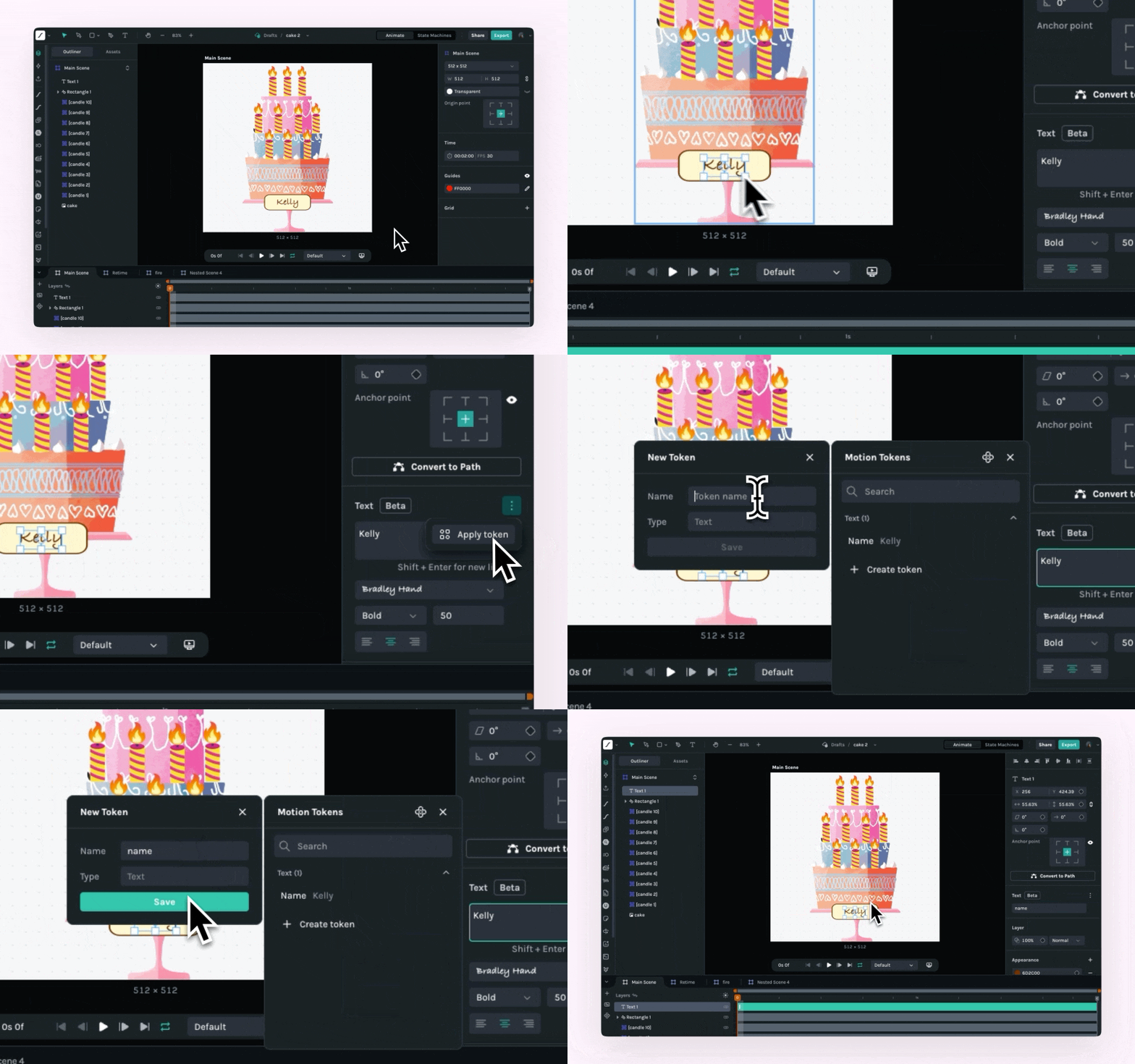
If you want to go one step further: text doesn’t have to be “final” when you export.
With Motion Tokens, developers can update a text value at runtime — so the same animation can say:
- “Happy Birthday, Aisha”
- “Happy Birthday, Ken”
- or switch language/labels based on locale or app state
Want to see it live? Try this out:
Wrapping Up
So there you have it, a small look into the inner workings of Lottie Creator development and what it opens up to you. I hope all you typography enthusiasts enjoy the new feature! A huge shoutout to everyone that helped work on this feature for the last few months!
The developers, the managers, the marketing team, you guys are amazing! <3
You may also like

How to Create Animations with AI Using Lottie Creator WebMCP
Guide to creating and refining animations with AI using Lottie Creator WebMCP.
How to Build Your First Lottie Creator Plugin: Create and Animate a Rectangle
Creating a beginner-friendly Lottie Creator plugin using the Creator plugin API.
How to Develop and Publish a Plugin for Lottie Creator
Learn how to create, test and publish a plugin to LottieFiles Extensions.

Lottie/dotLottie vs. GIF: Choosing the Right Animation for You
The two most popular web animation formats, Lottie and GIF, collide head-on. This blog will focus on the 5 most important parameters to tell you who's the boss!