
AI SVG Generator: Generate, Refine, and Animate with Prompt to Vector 2.0

You know the feeling. You have a crystal-clear picture of the asset you need, but it doesn't exist yet, and building it from scratch or digging through design libraries to find something close enough isn't exactly how you wanted.
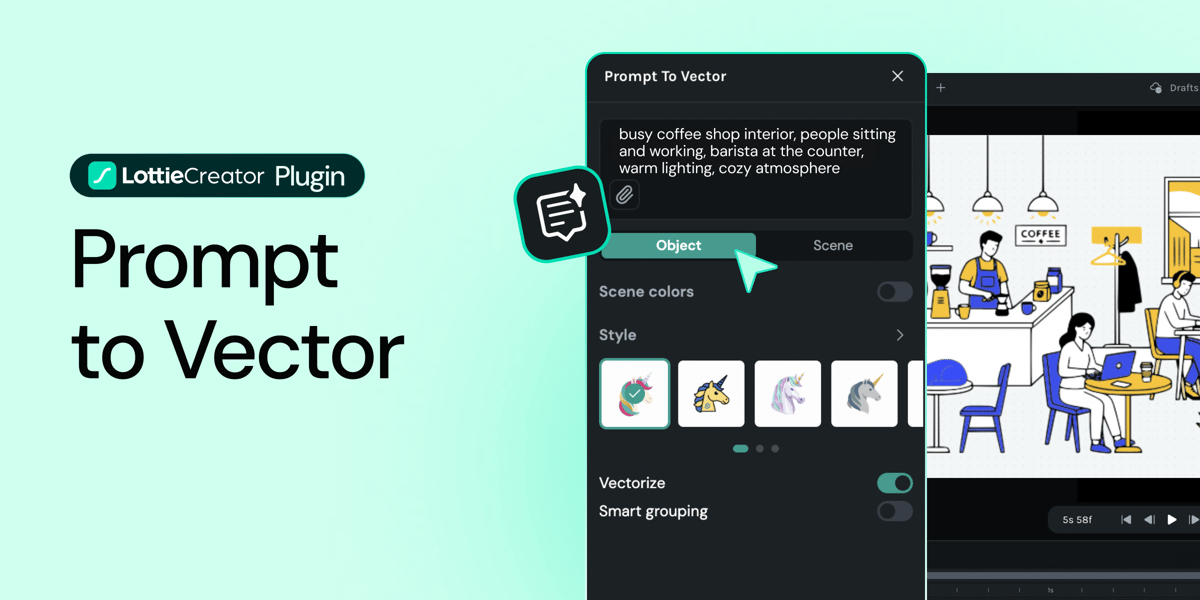
Prompt to Vector is LottieFiles’ AI SVG generator that turns text prompts into editable vector assets, right inside Lottie Creator
Here's what's new.
Why use an AI SVG generator inside your animation tool?
Most AI image generators stop at the image. You get a file, you download it, and then you figure out how to get it into your animation workflow, cleaning up layers, tracing vectors, importing, troubleshooting. It's a detour every time.
Because Prompt to Vector lives inside Lottie Creator, there is no detour. Everything you generate is already where it needs to be, in the format it needs to be in, ready for the next step. The generation and the animation are part of the same workflow, not two separate tools you're stitching together.
That's the difference, and it's a bigger one than it sounds.
Build a whole scene, not just an object
One of the most meaningful additions is the choice between two generation modes: Single Object and Scene Mode.
Now you can generate full illustrated scenes: backgrounds, compositions, and entire visual environments. The kind of thing that used to require either a dedicated illustrator or hours of layering individual elements.
Try a prompt like: Think a misty mountain range, a busy coffee shop interior, a stylized cityscape at night.
Single Object mode is still there for when you need exactly that — a standalone asset, clean and ready to animate.

But Scene Mode opens up an entirely different category of use case.

Compare styles side by side
High contrast or retro skyline? Not sure, just run both and let the outputs decide. With 10 styles to choose from, you can run the same prompt across them and see which output best matches your idea.
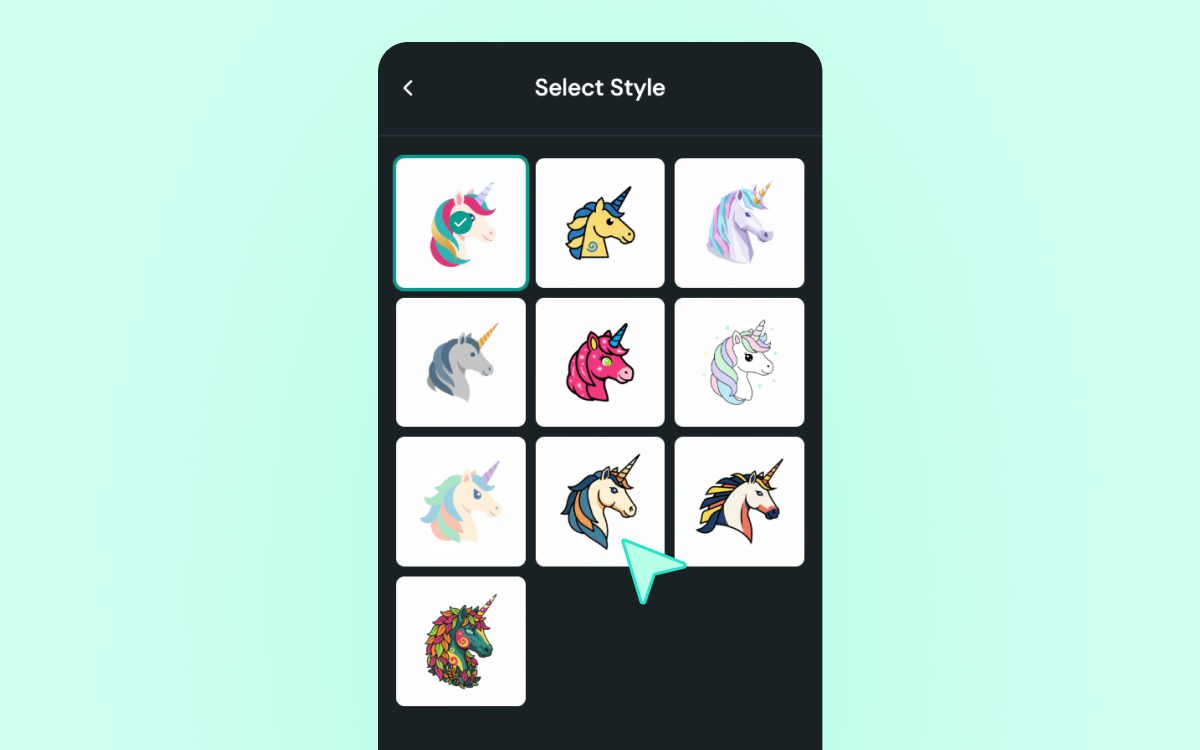
It's a small shift in workflow that makes a big difference in decision speed, especially when you're trying to nail a visual tone for a client or align with an existing brand direction.
Use a reference image when words aren't enough
Sometimes the thing you're trying to describe is easier to show, or it could be something from real life that you want to be illustrated. Image Attachment lets you upload a reference image and use it as creative input and the tool generates vectors inspired by it rather than starting from scratch.
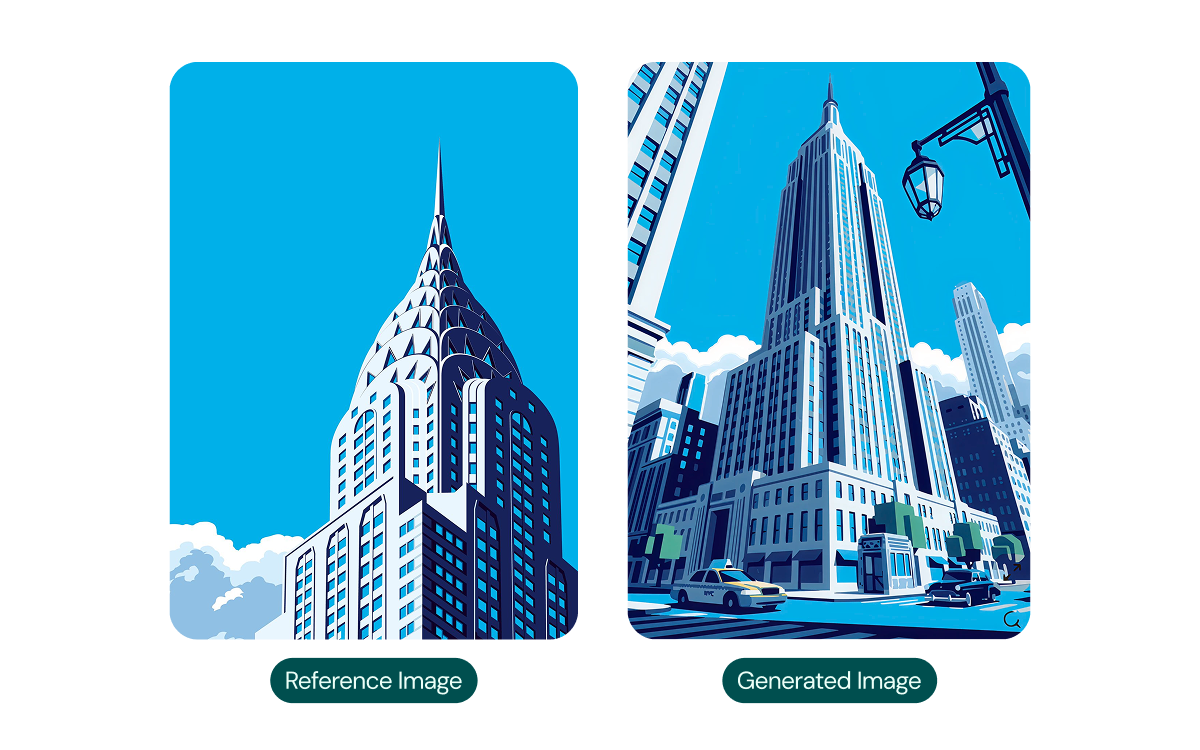
It's especially useful when you're working within an established design system — or when you simply work better from references than descriptions.
Edit and animate ready
Once you're happy with what's been generated, everything comes out as editable SVG layers — smartly grouped and neatly named, so the structure just makes sense. No cleaning up, no renaming, no untangling a mess of unnamed paths before you can get to work.
From there, you animate directly in Creator. Adjust timing, add motion, bring the whole thing to life, without ever leaving the tool. When you're done, export as a dotLottie file and ship it anywhere: web, mobile, app, whatever platform you're building for.
That's the part that's different. You're not just generating a static asset and downloading a PNG. You're going from text prompt to production-ready animation, end to end, in one place.

Ready to try it?
The best way to understand what this unlocks isn't reading about it — it's opening Creator and typing your first prompt. Start with something specific, something you've been putting off because it felt too hard to source.
You may also like

How to Create Animations with AI Using Lottie Creator WebMCP
Guide to creating and refining animations with AI using Lottie Creator WebMCP.
How to Build Your First Lottie Creator Plugin: Create and Animate a Rectangle
Creating a beginner-friendly Lottie Creator plugin using the Creator plugin API.
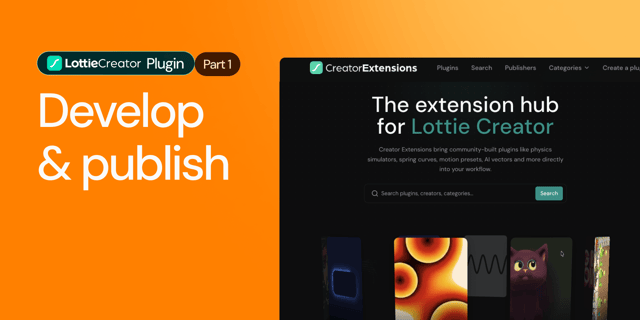
How to Develop and Publish a Plugin for Lottie Creator
Learn how to create, test and publish a plugin to LottieFiles Extensions.
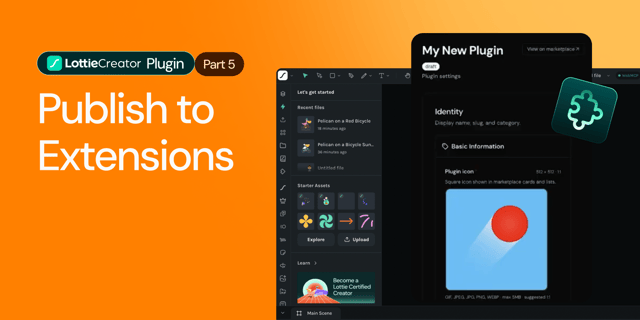
How to Publish a Lottie Creator Plugin to Extensions
Learn how to prepare, package and publish your Lottie Creator plugin to LottieFiles Extensions.