
Universal File Importer: Bring Any File Into Lottie Creator


Lottie Creator is a browser-based design and animation tool for building Lottie animations from scratch, now enhanced with Universal File Importer. With Universal File Importer built in, you can draw, animate, import existing assets in almost any format, and export without leaving your browser.
Universal File Importer is built for motion designers, animators, and developers who work across tools and need everything on one canvas. It takes the files you already have and brings them straight into Lottie Creator, no matter the format.
Your motion designer sends an .aep. The video team has a .mov. Brand just dropped a .psd in the shared folder. Getting all of that onto one canvas means bouncing between converters and "can you re-export that as..." messages.
What’s even better is that Flash and Adobe Animate files can convert straight to Lottie. Just drop .FLA files from Adobe Animate (formerly Flash) directly into the plugin. No conversion step, no legacy workflow. Decades of Flash assets are now usable on the modern web as Lottie animations.
One plugin, 16 formats
Flash / Animate files. In LottieFiles Creator.
— LottieFiles (@LottieFiles) March 5, 2026
Universal File Importer — .FLA .AI .PSD .AEP .SVG .PDF .GIF .MP4 & more.
Drop any file. Ship a Lottie. pic.twitter.com/L8D13qi9YE
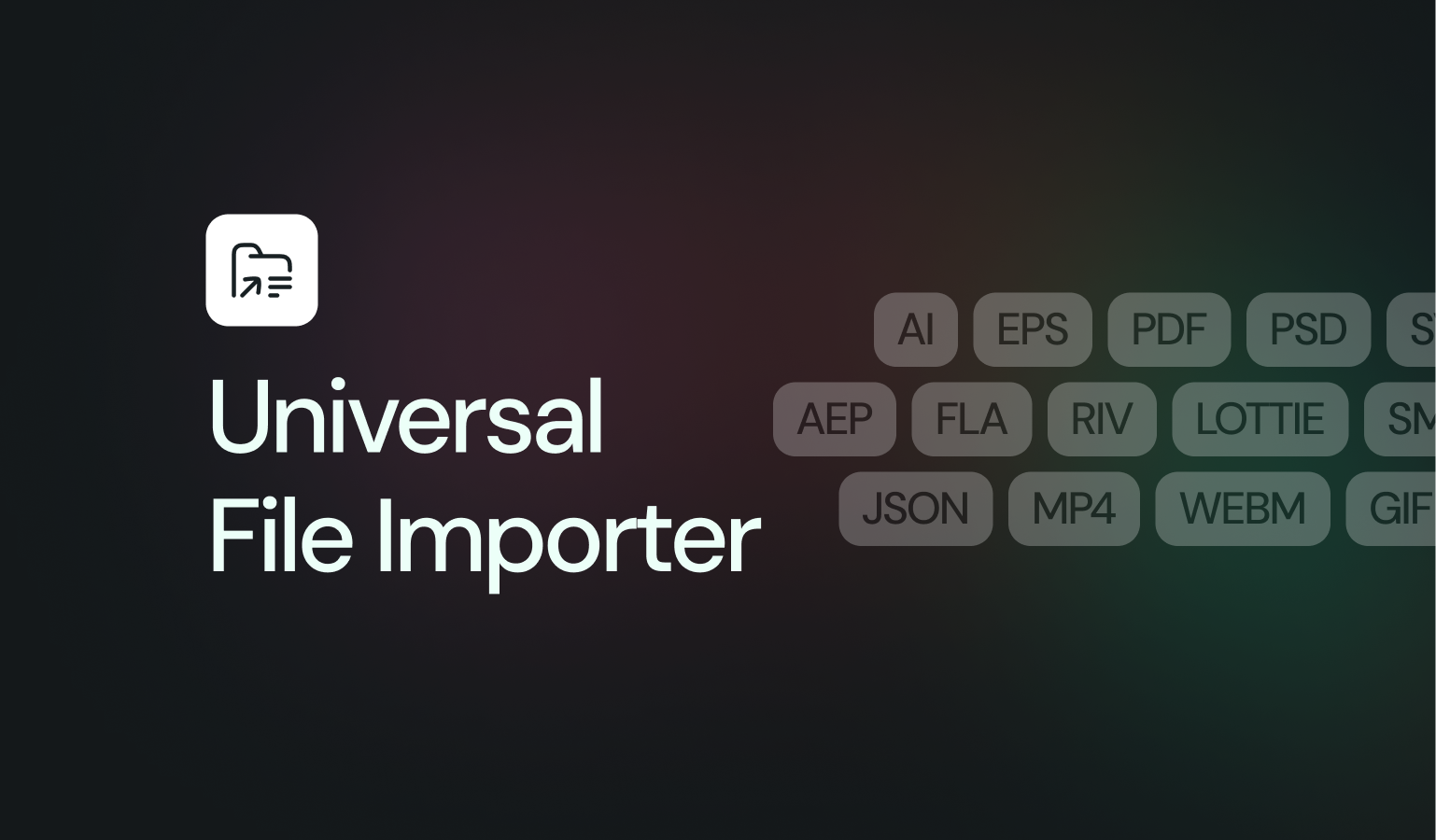
The Universal File Importer can handle the following files:
- Design files: AI, EPS, PDF, PSD, SVG.
- Animation formats: AEP, FLA, RIVE, LOTTIE, GIF
- Motion: SMIL, JSON
- Video: MP4, WebM, MOV and WEBP, which convert directly into Lottie animations.
Each file can be up to 20MB.
How it works
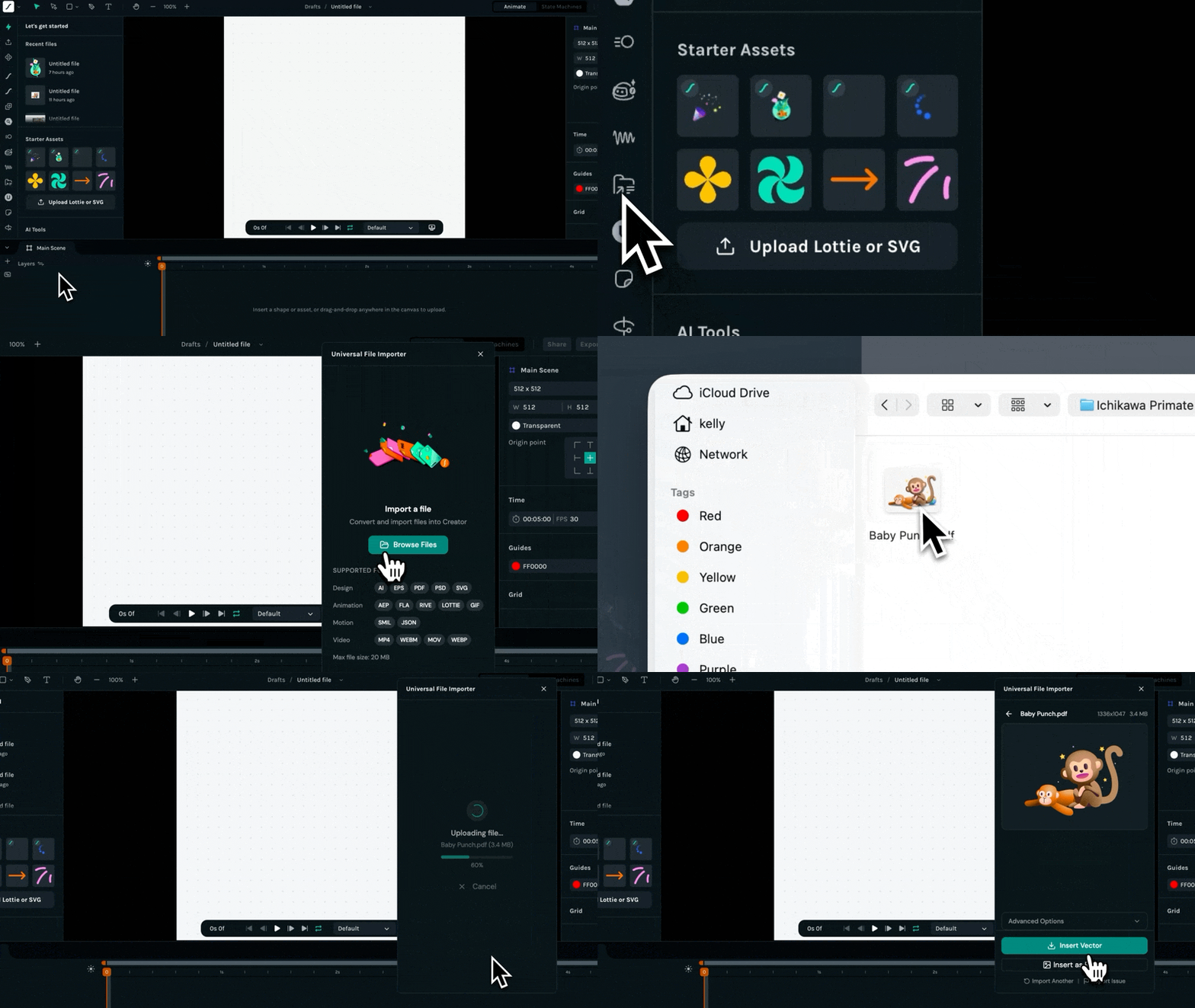
1. Drop your file into the plugin
2. Preview it with full playback controls
3. Pick your output: SVG, Lottie, or raster
4. It lands on your canvas, ready to use
It adapts to the file
Long videos or GIFs? Clips over 10 seconds get a trim interface. Pick the segment you need, set the frame rate, adjust quality.
Messy SVGs? Built-in optimization strips metadata, simplifies paths, merges overlapping shapes, and removes hidden elements. Toggle what you want, no command line required.
Files with live text? Flatten text converts all type to vector paths. What you see is what you get, regardless of installed fonts. You can also remove vector paths and replace it with editable text layers with Lottie Creator’s native text support.
After Effects to Lottie, right in your browser
Getting After Effects work into Lottie has always required the LottieFiles/Bodymovin plugin running inside After Effects itself. If you don't have AE installed, or you're working from a browser, you're out of luck.
This plugin parses the .aep binary format directly in the browser using LottieFiles' proprietary converters. Drop an .aep file in, get a Lottie out. No After Effects installation. No desktop app.
AEP files often contain multiple compositions. The plugin reads them all, shows each one with a live preview, and lets you pick which comp to convert. If the file only has one comp, it skips straight to the result.
Layers, keyframes, timing, dimensions — the conversion maintains the animation structure so the Lottie output matches what you built in After Effects.
Video & GIF to Lottie, without uploading anything
The plugin converts video and GIF files into Lottie animations entirely on your machine. Nothing gets uploaded. It pulls frames from the source, encodes them as WebP, then builds a Lottie file right in the browser.
This is useful for things like product demos, app walkthroughs, or short UI recordings where you want the content inside a Lottie animation rather than embedding a separate video player. A 3-second clip of a screen transition, a looping product shot, a quick tutorial snippet.
One thing to keep in mind: video-to-Lottie works by embedding raster frames, so the output files are larger than typical vector Lottie animations. The plugin shows you the resulting file size after conversion, so you can decide if it fits your needs. Keep these clips short and targeted. Use it where video content adds something you can't achieve with vector animation alone.
You control frame rate (up to 30 FPS), trim points, and quality. If the first pass isn't right, reconvert with different settings until it is.
3 ways to insert
Once converted, you pick how the file lands on the canvas:
- SVG: for fully editable vector output
- Lottie: for animated playback, native in Lottie Creator
- Raster: (PNG or WebP) for pixel-perfect snapshots
Drop your file in. It lands on the canvas. From there, you have the full Lottie Creator toolset: keyframe animation, easing controls, timeline editing, effects. Your imported asset isn't a static preview. It's a starting point for animation work.
You may also like

How to Create Animations with AI Using Lottie Creator WebMCP
Guide to creating and refining animations with AI using Lottie Creator WebMCP.
How to Build Your First Lottie Creator Plugin: Create and Animate a Rectangle
Creating a beginner-friendly Lottie Creator plugin using the Creator plugin API.
How to Develop and Publish a Plugin for Lottie Creator
Learn how to create, test and publish a plugin to LottieFiles Extensions.
How to Publish a Lottie Creator Plugin to Extensions
Learn how to prepare, package and publish your Lottie Creator plugin to LottieFiles Extensions.