When you strip an animation down to its bare bones, it’s really just a change of values over time. Something moves from point A to point B.
But what separates simple movement from something that feels intentional, expressive, or alive is how it gets there.
That “how” is called easing — and it’s one of the most overlooked yet powerful tools in motion design.
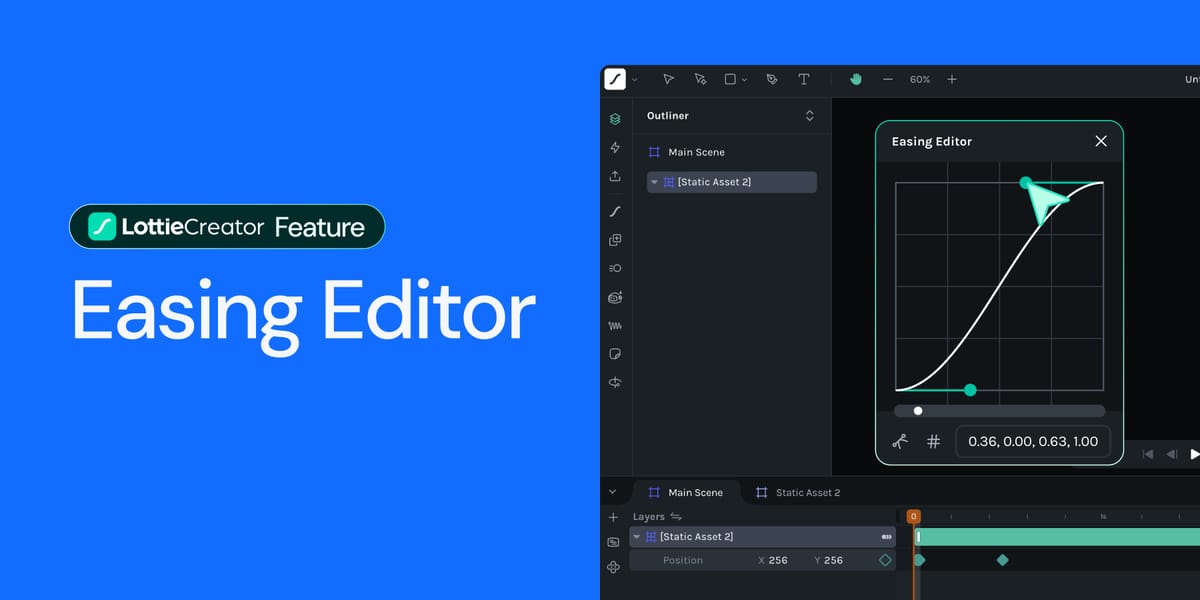
Easing Editor is now live in Lottie Creator! 🥳
— LottieFiles (@LottieFiles) November 12, 2025
Control the rhythm between keyframes, making animations feel more natural. pic.twitter.com/ztUAQnedhl
The problem with perfect lines
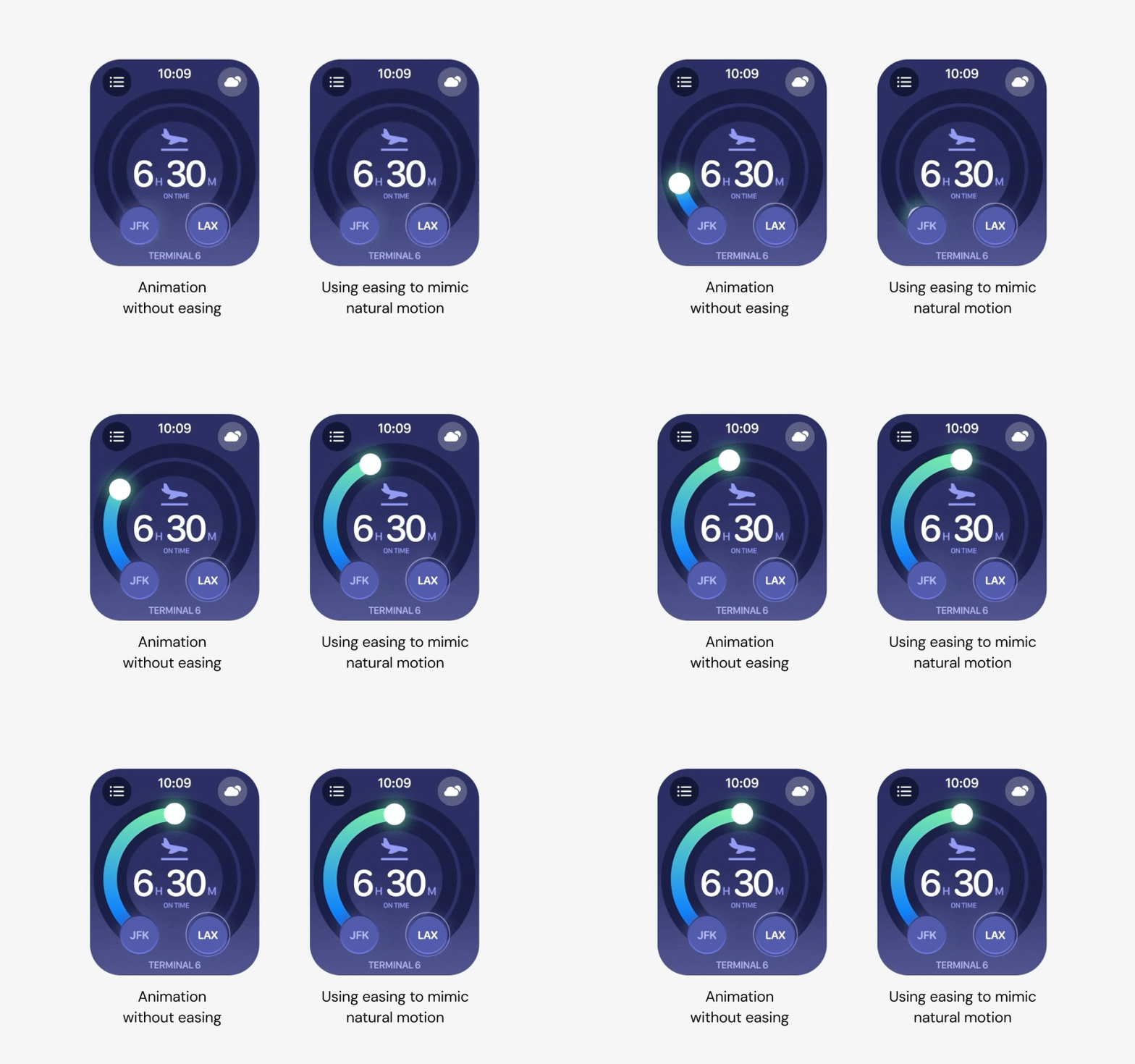
While default easings like linear or ease-in-out aren’t “wrong,” almost nothing in real life moves at a perfectly steady pace. A ball doesn’t stop instantly, a door doesn’t swing evenly, and even while I typing, my hands speeds up and slows down. You see this in UI, too — that tiny bounce or gentle settle when you tap a button? That’s easing. Every time.
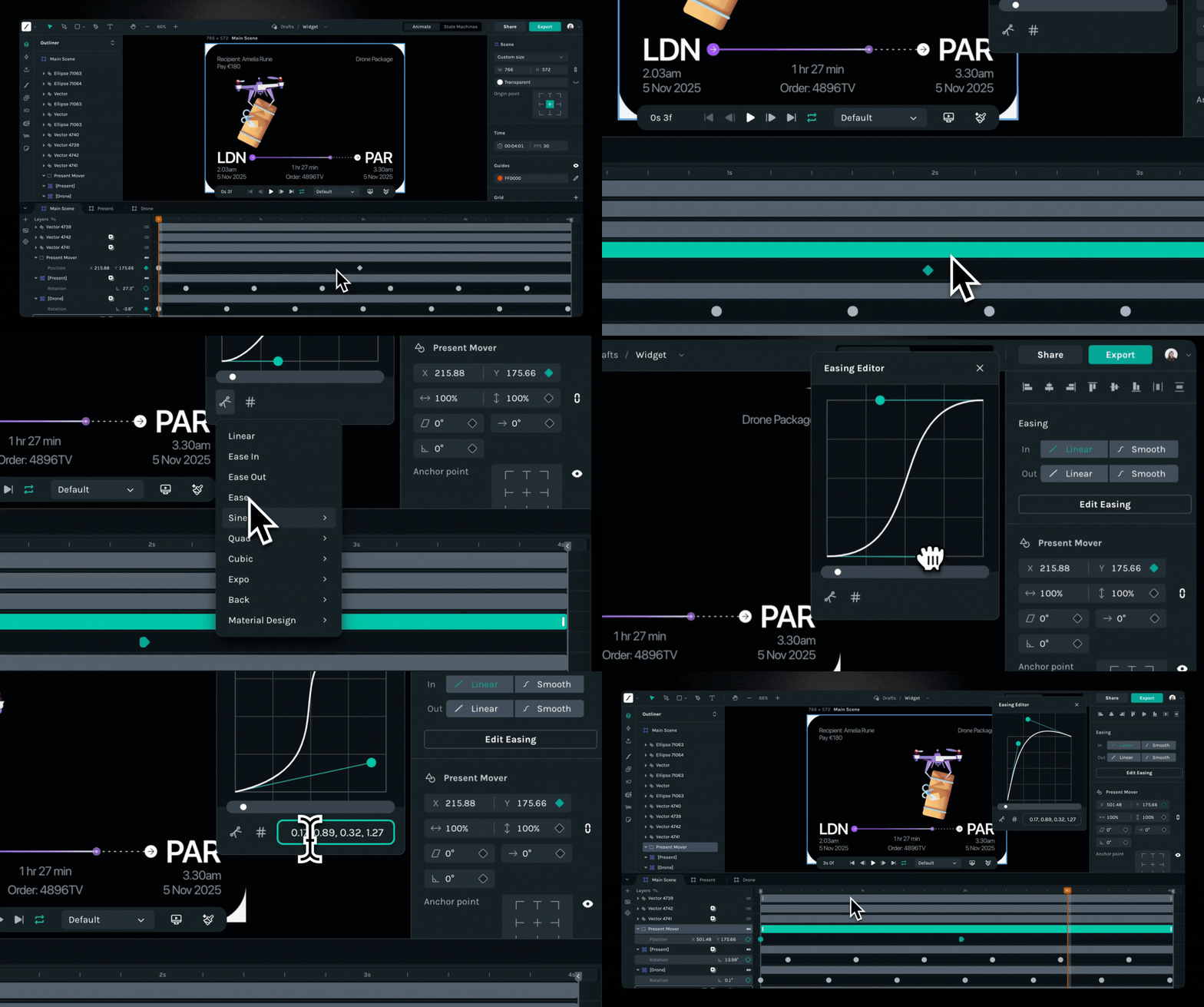
To bring that sense of real-life physics into Lottie Creator, we built the Easing Editor, a simple but powerful upgrade that lets you control curve tangents between adjacent keyframes, shaping acceleration, deceleration, anticipation, and follow-through visually and in real time.
It also marks our first step toward the full Graph Editor many of you have been asking for.
Reading the bezier graph
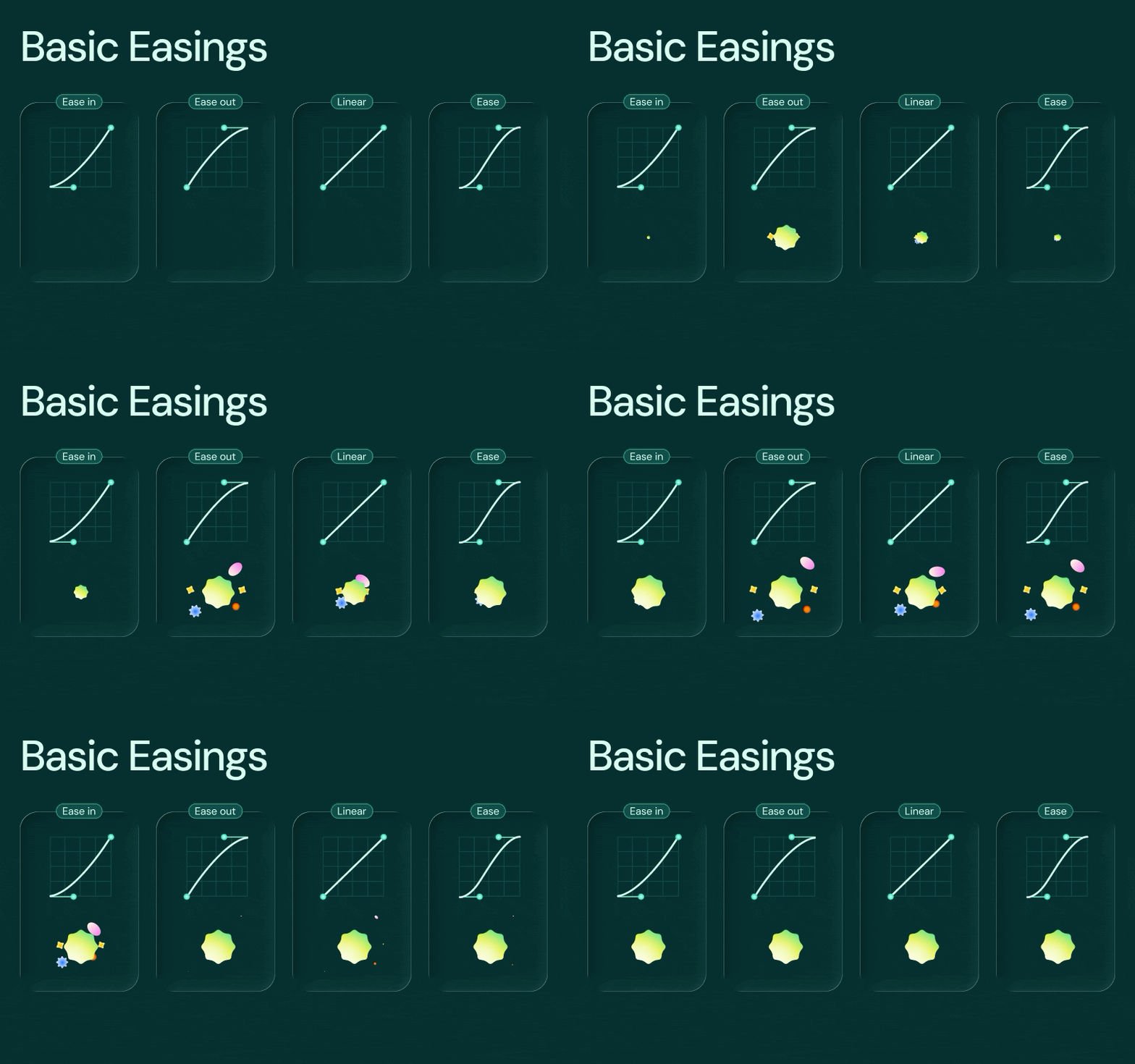
At its heart, an easing curve is just a graph: time on one axis, progress on the other. Once you understand the relationship between curve shape and perceived motion, everything starts to click.
Base Easings
- Linear — constant speed; useful for mechanical or deliberately “neutral” motion.
- Ease In — slow → fast; great for moving elements out or creating buildup.
- Ease Out — fast → slow; ideal for bringing elements in or landing emphasis.
- Ease (Ease In Out) — smooth → fast → smooth; reliable default for most UI movement.
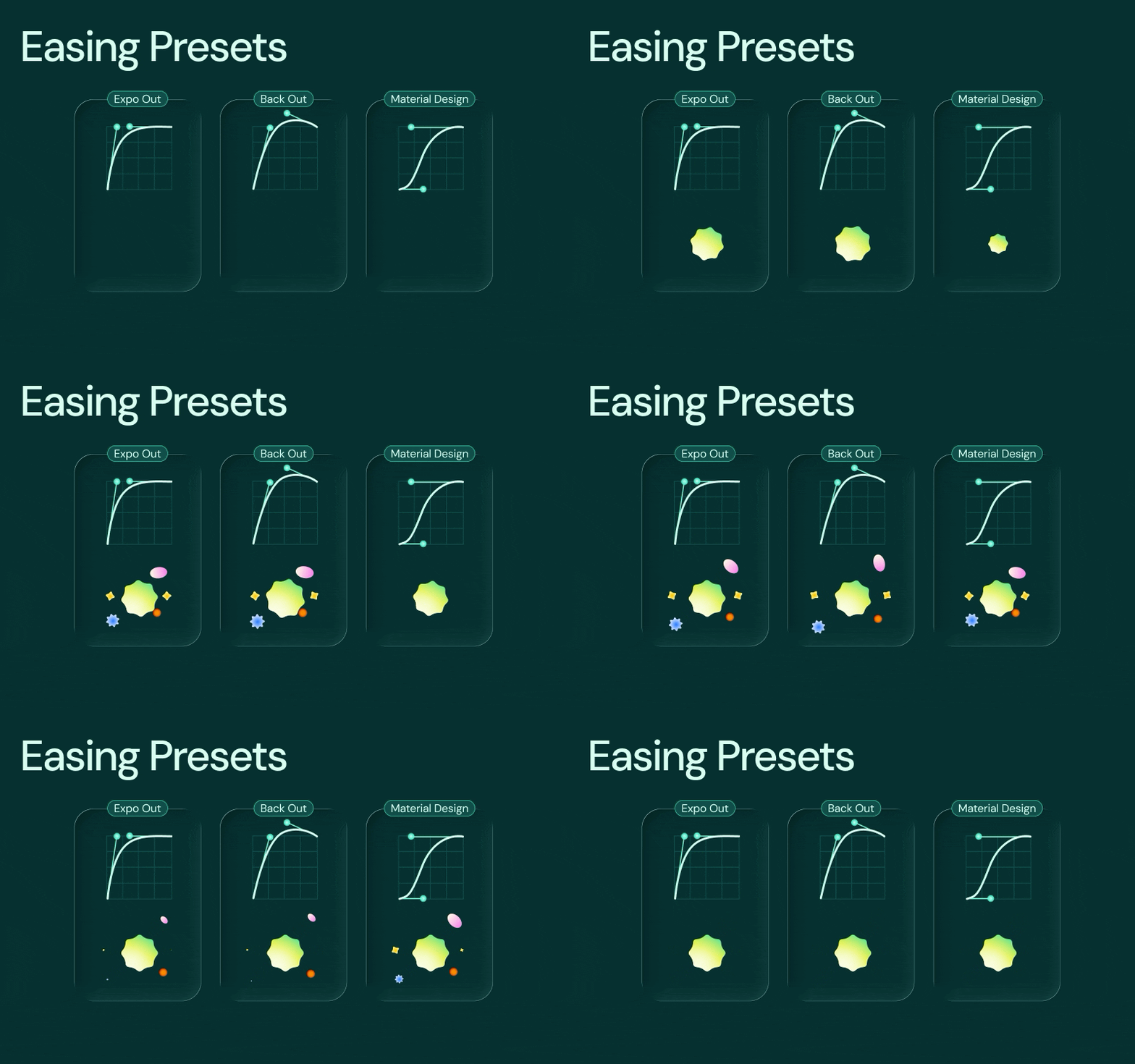
Easing Presets
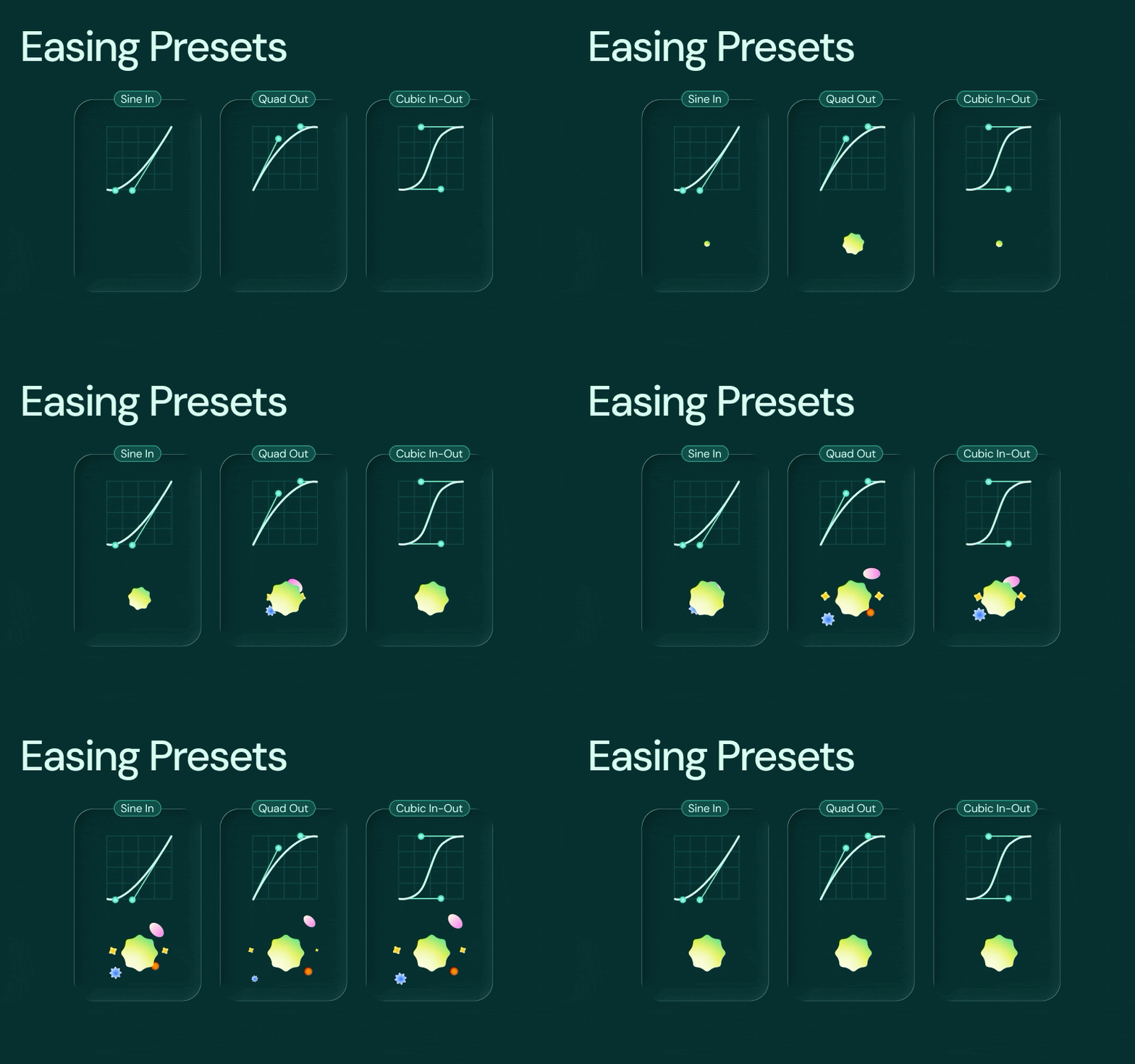
- Sine In/Out/In Out — soft, natural curves; ideal for gentle fades, subtle movement, and calmer UI motion.
- Quad In/Out/In Out — slightly stronger ramping than Sine; solid for UI micro-interactions with a bit more energy.
- Cubic In/Out/In Out — smoother, more expressive curves; useful for motion that needs polish without feeling exaggerated.
- Expo In/Out/In Out — dramatic speed shifts; Expo Out especially offers a snappy burst → clean settle.
- Back In/Out/In Out - adds a small overshoot before committing to the motion; instantly adds personality, playfulness, and character.
- Material Design Curves — Google’s motion guidelines baked into presets; great for Android, cross-platform consistency, or adhering to established design systems.
Customizing Easing with the Bézier curve
Presets are a great starting point — but when you want total control, the bézier curve gives you full freedom. Adjust the handles to reshape the curve… or use numeric input fields for precise control, especially when matching motion across components or projects.
This brings the fine-grained control motion designers expect from high-end tools directly into your browser.
Final Thoughts
Now that you have easing here are quick tip
The Easing Editor unlocks a level of control that simply didn’t exist inside Lottie Creator before, and we can’t wait to see how you use it. This update is part of a much bigger transformation happening across Lottie Creator, with more depth, more expressiveness, more tools that help you bring ideas to life without switching platforms.
It’s a small feature on the surface, but a big step for motion inside the browser. So go ahead — tweak, play, stretch curves, and shape the feel of your motion. And if you create something you’re proud of, share it with the community. We’d love to see what easing enables you to create.